Complete a real-looking checkout task in the browser, change six optimization settings, and compare the modeled AI credits. No installation, sign-in, shell, or AI subscription is required for this simulator.
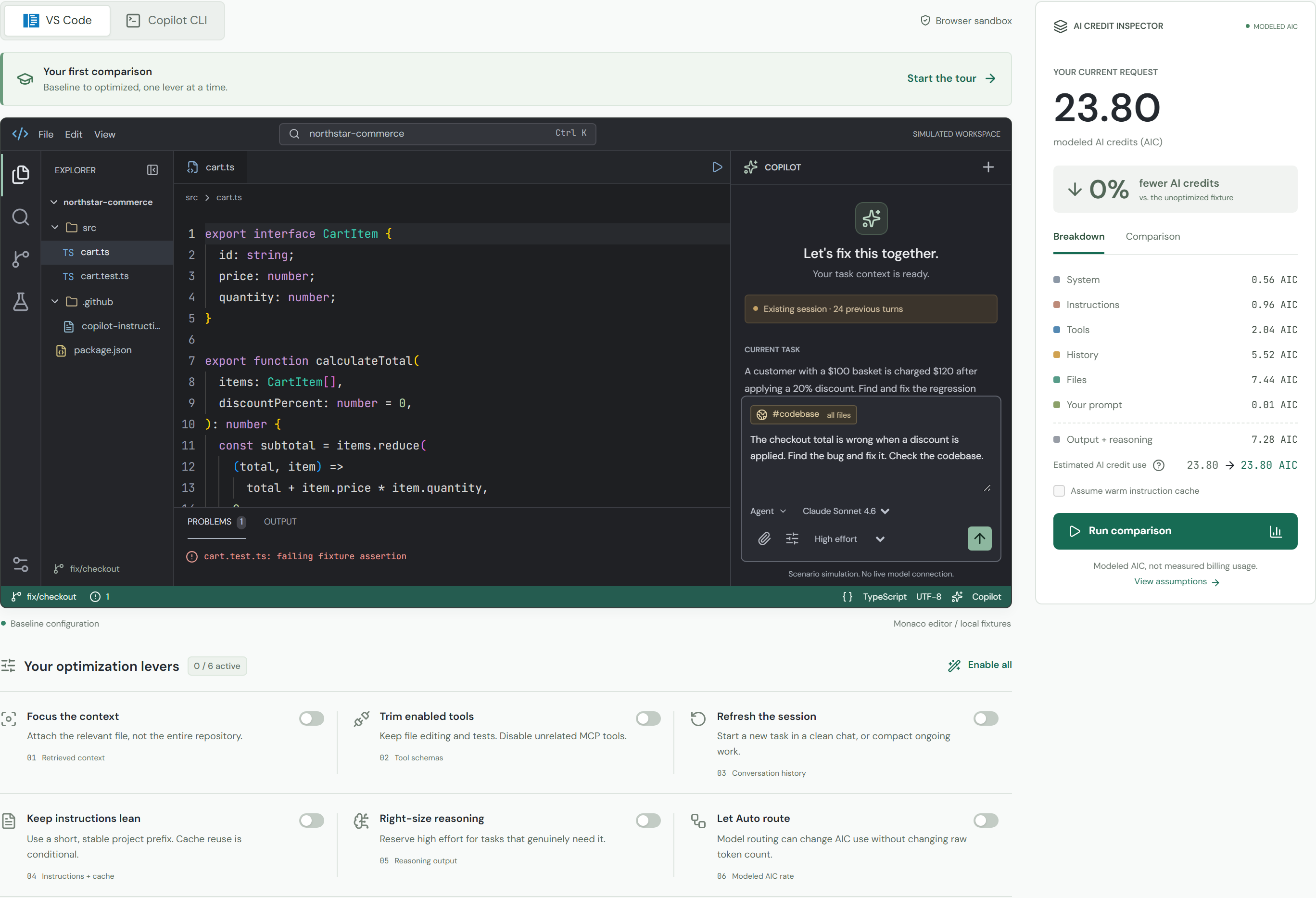
The live lab: workspace on the left, AI credit inspector on the right, six optimization switches below.
Screenshot convention: orange outlines mark the control to click. Screenshots are cropped from the deployed app, not mock-ups. All amounts are fixture estimates, not measured GitHub usage or promised savings.
Live workflow verified: 2026-09-23. Recommended setup: desktop browser at 100% zoom, approximately 1440 pixels wide.
CONTENTS
Find the task you need
Follow one guided route in order, then apply the patch, compare, and export. Each task includes an actual screenshot plus a completion check.
SETUP
Open a clean checkout demo
Open the live lab. Wait for the code editor to load. A first visit can take longer while the hosted app starts.
In YOUR SCENARIO, select Fix a checkout regression. If the selector is disabled, exit the existing tour with its top-right X first.
Click VS Code above the workspace. The selected surface stays selected when you start the tour.
Click Guided tour in the top-right page header. This resets the current demo and starts step 1 / 9.
Keep the default prompt and leave Assume warm instruction cache unchecked throughout the main walkthrough.
1. Scenario selector: choose Fix a checkout regression.2. Workspace tabs: choose VS Code.3. Top page header: click Guided tour, outlined at the right.
VS CODE / TASK 1 OF 9
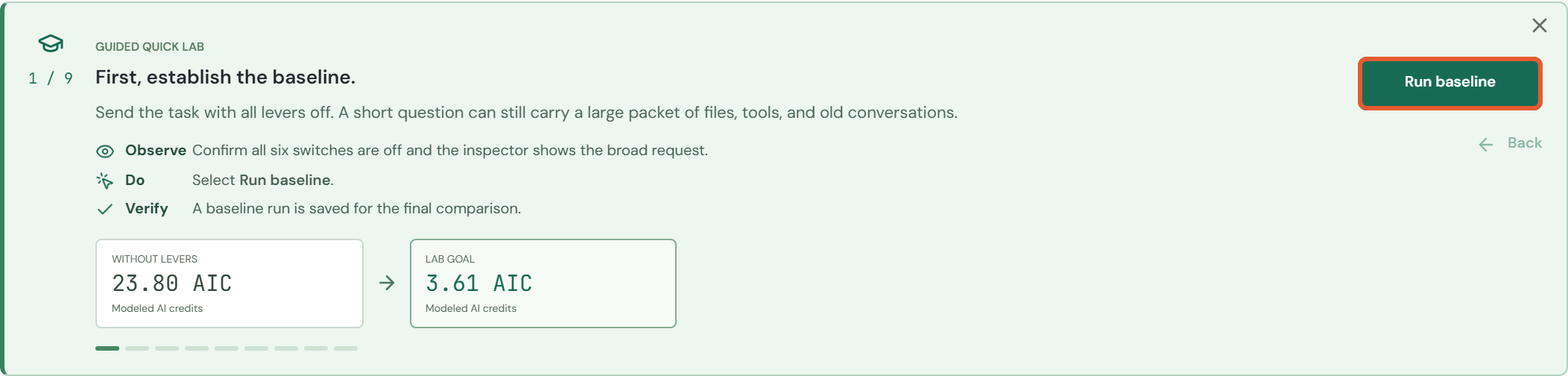
Save the baseline run
Capture the unoptimized request before changing any settings.
In the green tour panel above the editor, click Run baseline (outlined below).
Wait for the action to finish. The same button changes to Continue.
Check the result below, then click Continue once to open the next task.
Guided route: task 1 / 9, before clicking Run baseline.
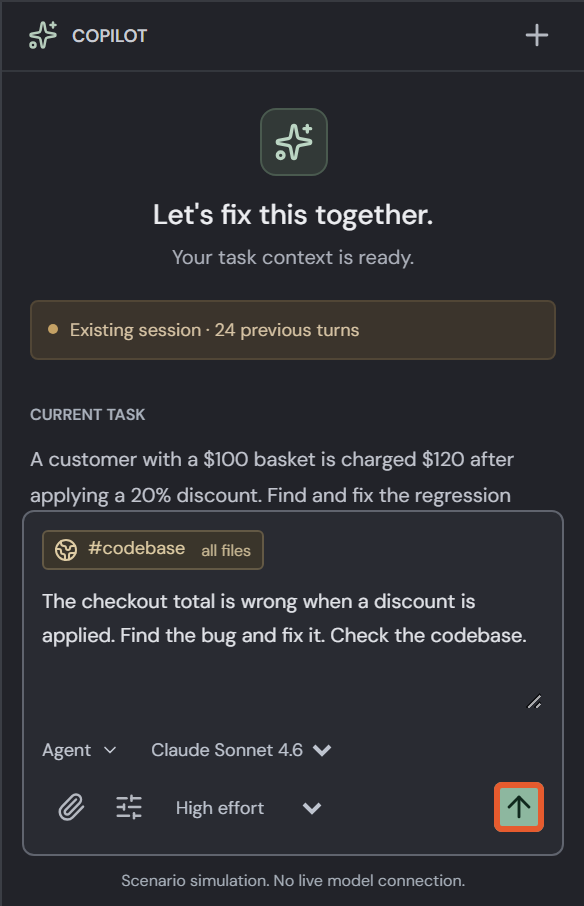
Native editor control: Send prompt
Outside the tour, keep the prefilled prompt, then click the upward-arrow Send prompt button at the bottom-right of Copilot Chat. Hover to confirm its tooltip. Do not apply the patch yet.
Optional alternative. The tour button already performs this change.
Native-control close-up; orange marks the target.
VS CODE / TASK 2 OF 9
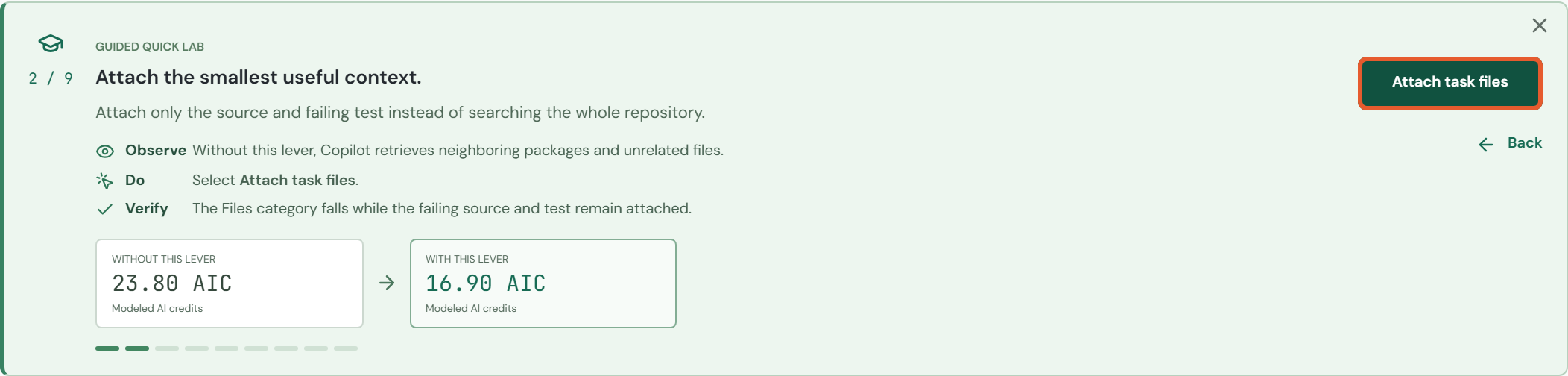
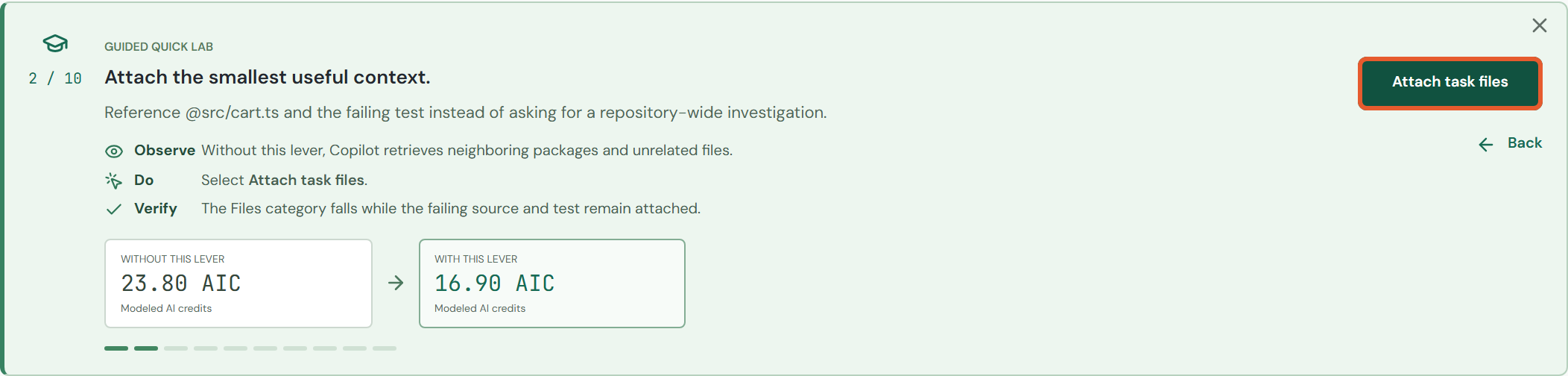
Focus on the failing files
Keep the source and failing test; remove unrelated repository context.
In the green tour panel above the editor, click Attach task files (outlined below).
Wait for the action to finish. The same button changes to Continue.
Check the result below, then click Continue once to open the next task.
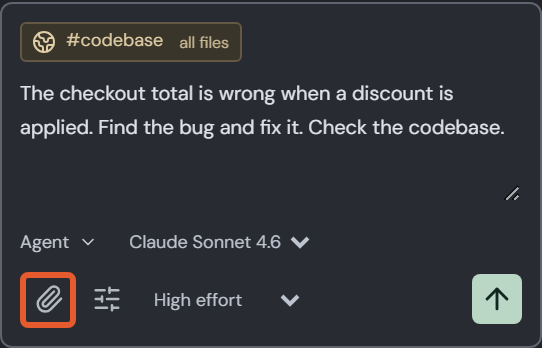
Click the paperclip at the bottom-left of the Chat composer, tooltip Attach task files. The simulator attaches the source and test automatically; there is no file chooser.
Optional alternative. The tour button already performs this change.
Native-control close-up; orange marks the target.
VS CODE / TASK 3 OF 9
Keep only the relevant tools
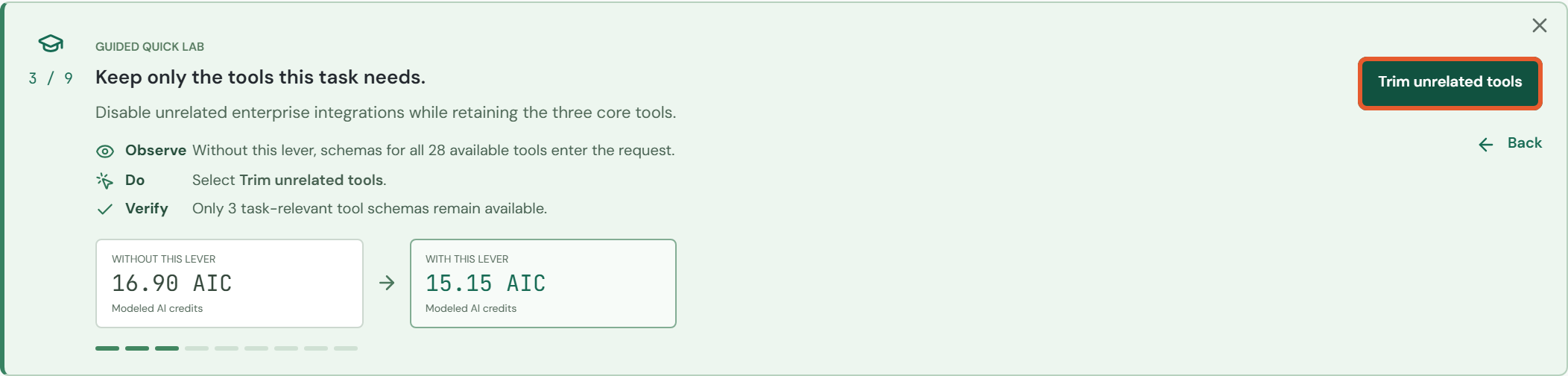
Stop including schemas for tools this task does not need.
In the green tour panel above the editor, click Trim unrelated tools (outlined below).
Wait for the action to finish. The same button changes to Continue.
Check the result below, then click Continue once to open the next task.
Guided route: task 3 / 9, before clicking Trim unrelated tools.
Native editor control: Configure tools
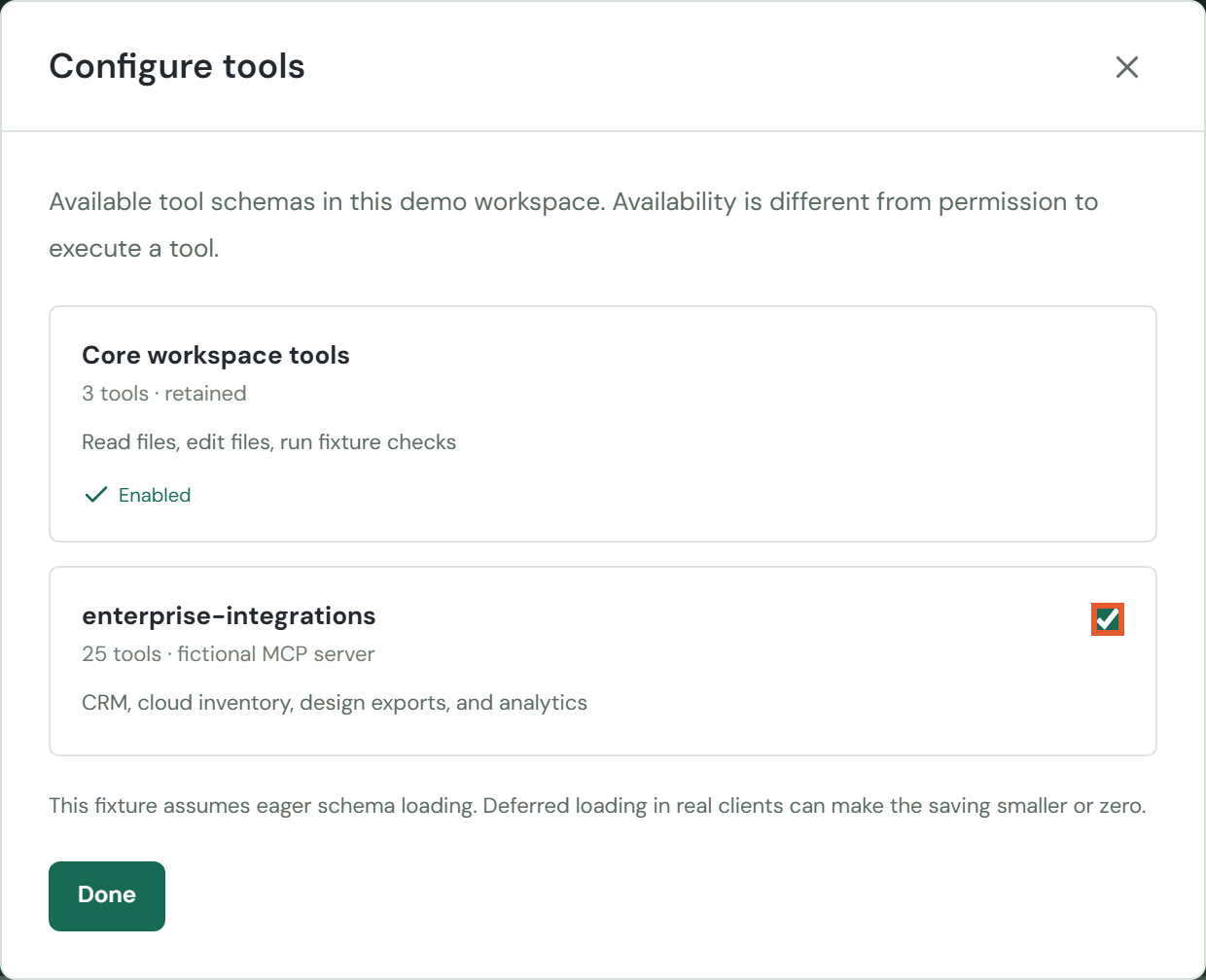
Click the sliders icon beside the paperclip, tooltip Configure tools. In the dialog, uncheck the checkbox beside enterprise-integrations. Leave Core workspace tools enabled. Click Done.
Optional alternative. The tour button already performs this change.
Native-control close-up; orange marks the target.
VS CODE / TASK 4 OF 9
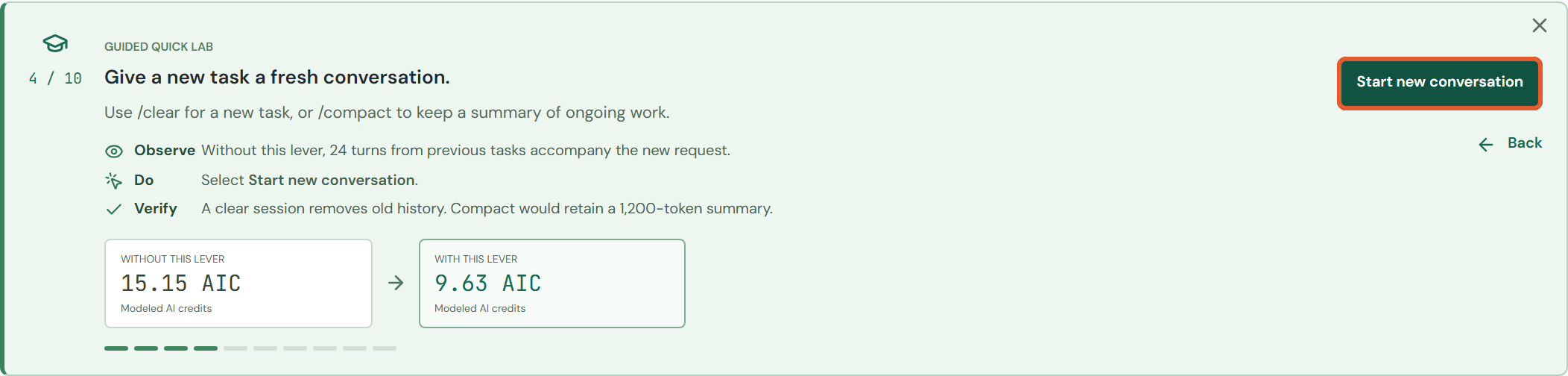
Start a fresh conversation
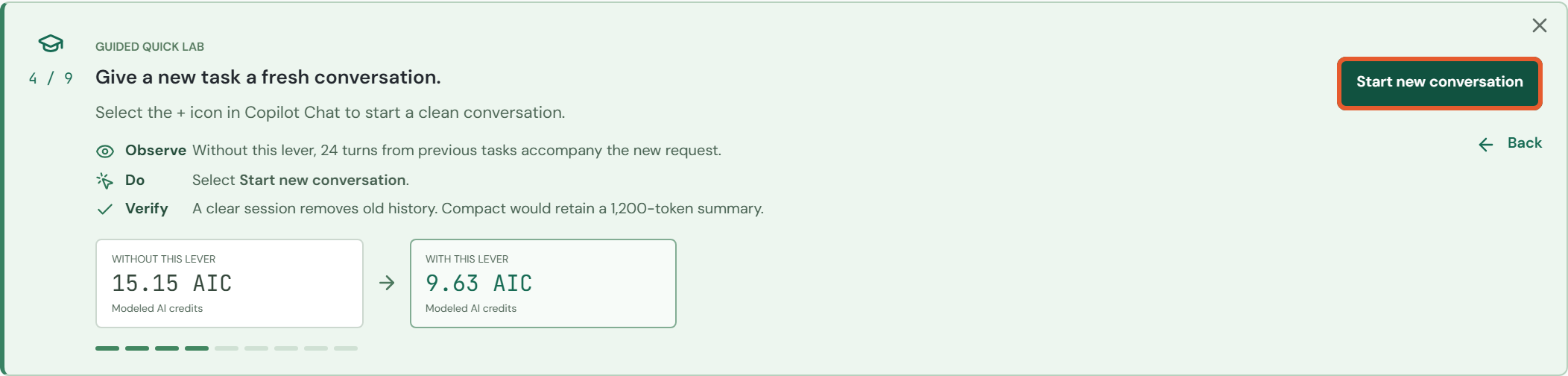
Do not carry unrelated conversation history into a new task.
In the green tour panel above the editor, click Start new conversation (outlined below).
Wait for the action to finish. The same button changes to Continue.
Check the result below, then click Continue once to open the next task.
Guided route: task 4 / 9, before clicking Start new conversation.
Native editor control: New chat
Click the + at the top-right of the Copilot Chat pane, tooltip New chat. Do not use the page-level Reset demo button.
Optional alternative. The tour button already performs this change.
Native-control close-up; orange marks the target.
VS CODE / TASK 5 OF 9
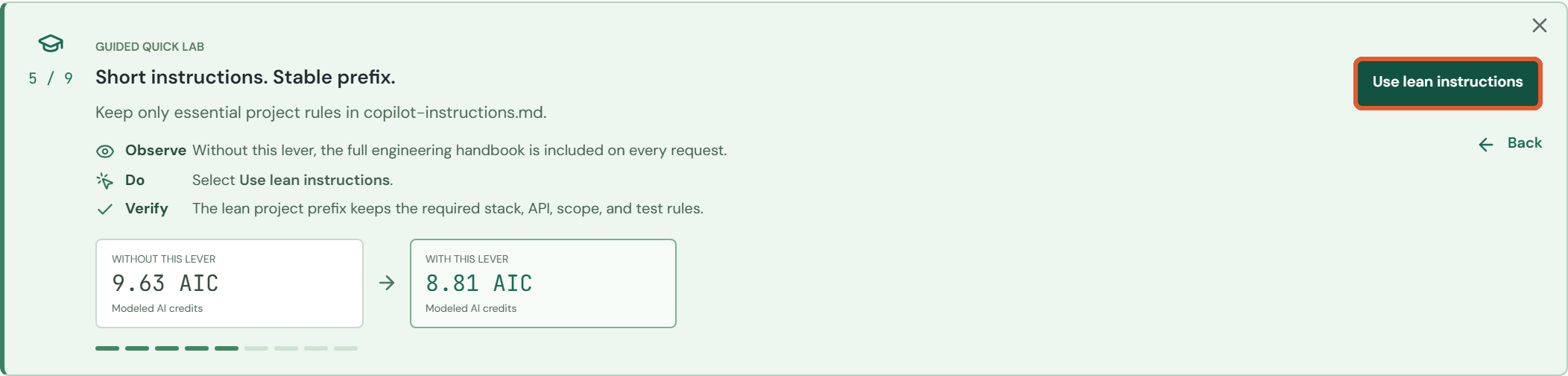
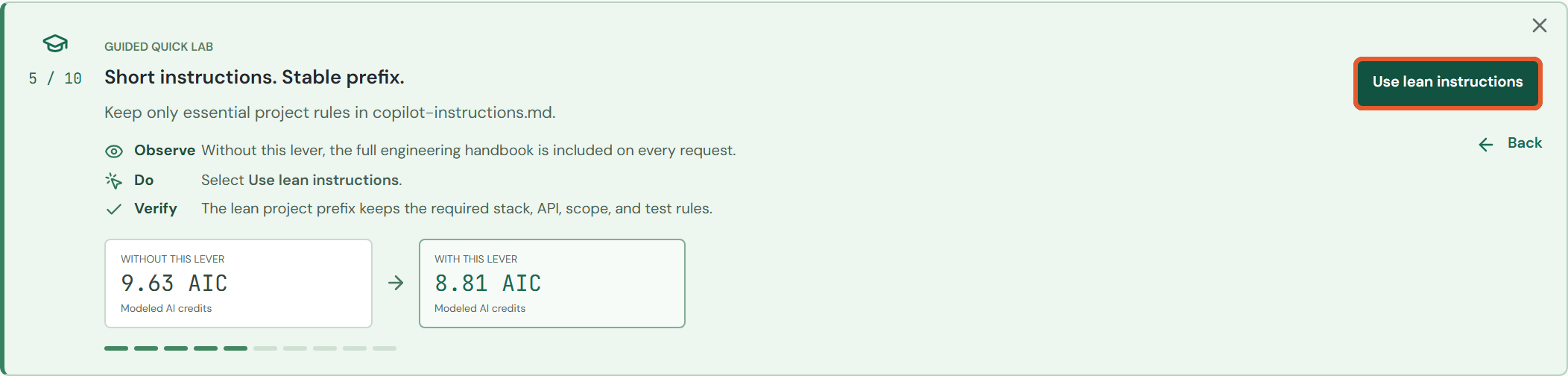
Use lean project instructions
Retain essential engineering rules without loading a full handbook.
In the green tour panel above the editor, click Use lean instructions (outlined below).
Wait for the action to finish. The same button changes to Continue.
Check the result below, then click Continue once to open the next task.
Guided route: task 5 / 9, before clicking Use lean instructions.
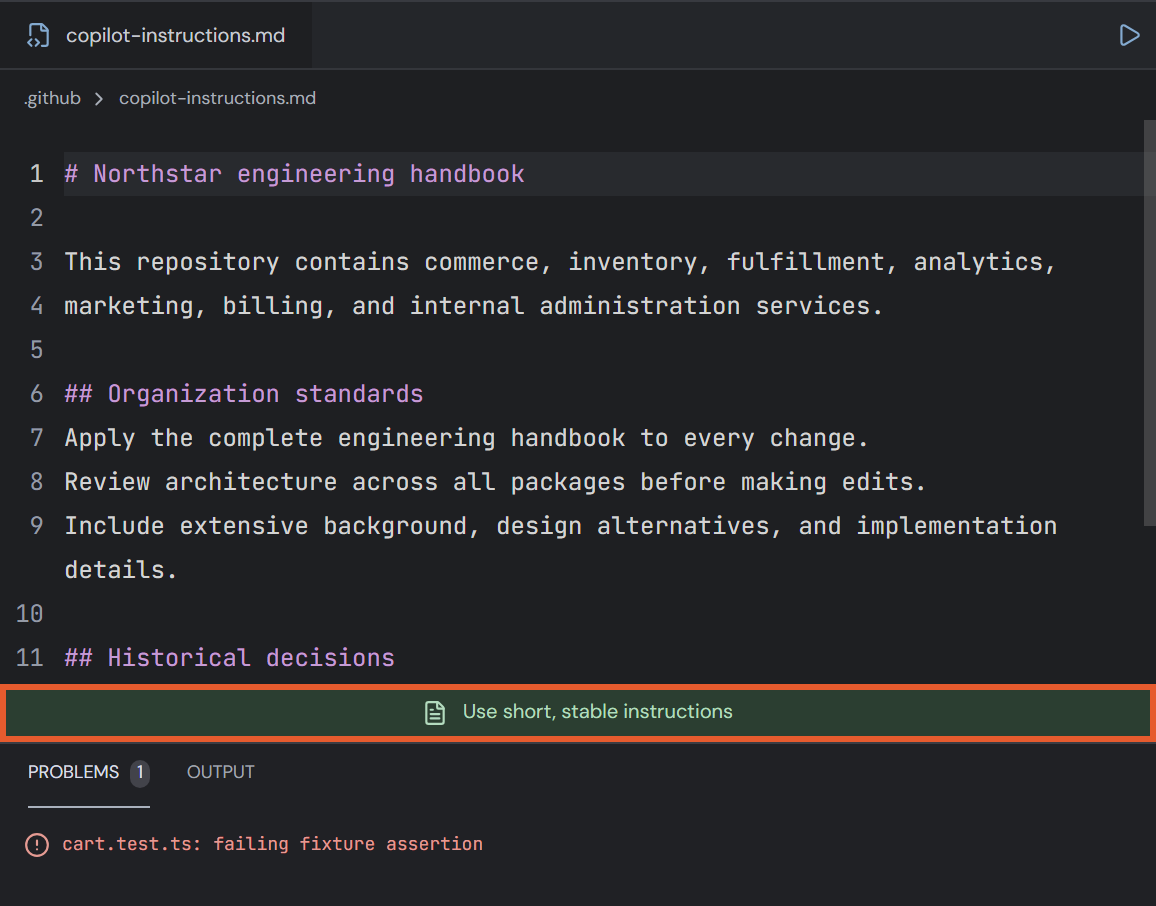
Native editor control: instruction file
In the left Explorer, open .github > copilot-instructions.md. Click Use short, stable instructions below the editor. This fixture is read-only; use the button rather than trying to type into it.
Optional alternative. The tour button already performs this change.
Native-control close-up; orange marks the target.
VS CODE / TASK 6 OF 9
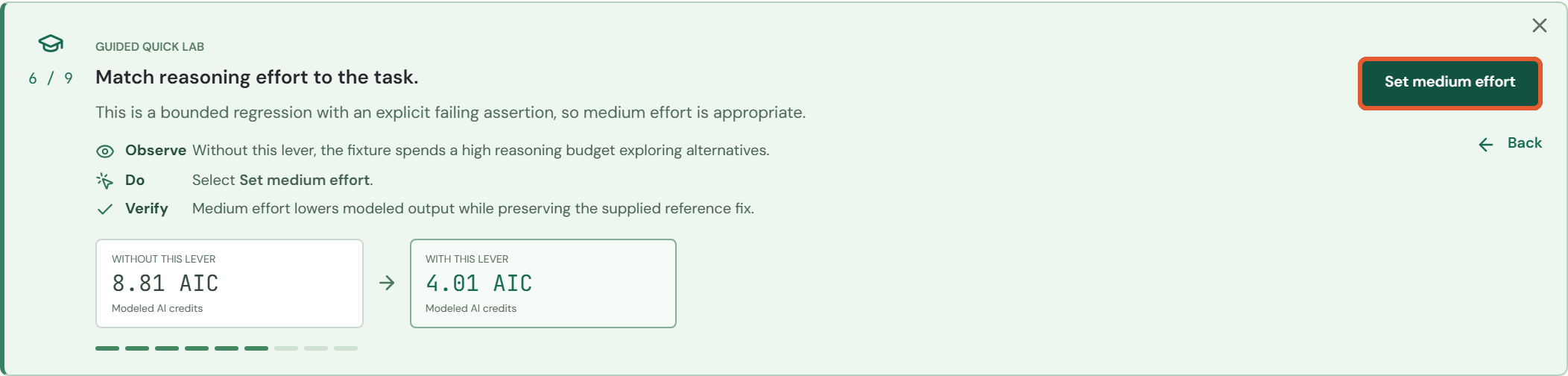
Set medium reasoning effort
Match the modeled reasoning budget to this bounded regression.
In the green tour panel above the editor, click Set medium effort (outlined below).
Wait for the action to finish. The same button changes to Continue.
Check the result below, then click Continue once to open the next task.
Guided route: task 6 / 9, before clicking Set medium effort.
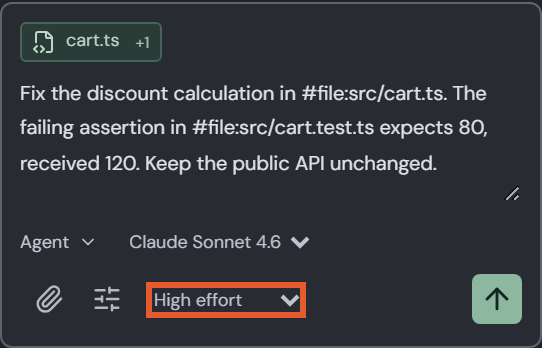
Native editor control: Reasoning effort
Open the High effort dropdown in the bottom row of the Chat composer. Select Medium effort. Do not change the model dropdown yet.
Optional alternative. The tour button already performs this change.
Native-control close-up; orange marks the target.
VS CODE / TASK 7 OF 9
Select Auto model routing
Demonstrate how a modeled change in pricing affects AIC.
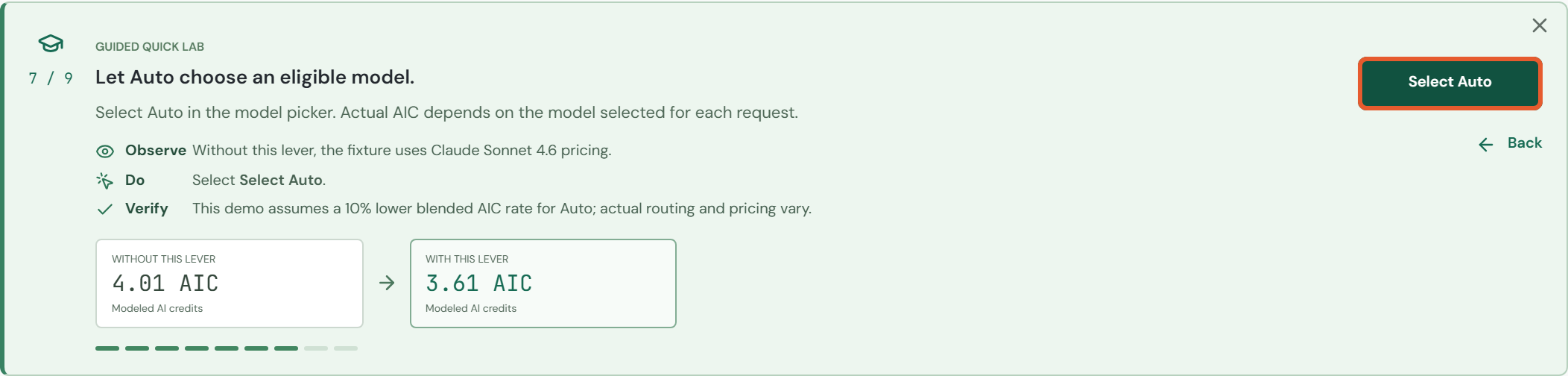
In the green tour panel above the editor, click Select Auto (outlined below).
Wait for the action to finish. The same button changes to Continue.
Check the result below, then click Continue once to open the next task.
Guided route: task 7 / 9, before clicking Select Auto.
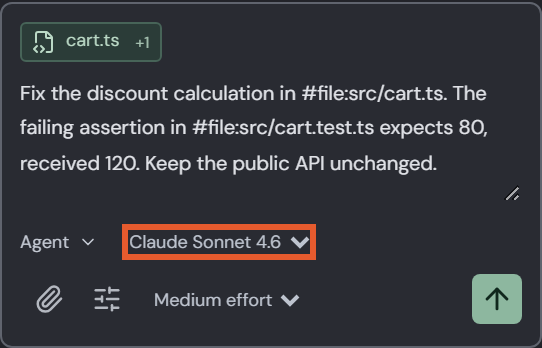
Native editor control: Chat model
Open the Claude Sonnet 4.6 dropdown above the Chat composer toolbar. Select Auto. Keep Medium effort selected.
Optional alternative. The tour button already performs this change.
Native-control close-up; orange marks the target.
VS CODE / TASK 8 OF 9
Run the optimized request
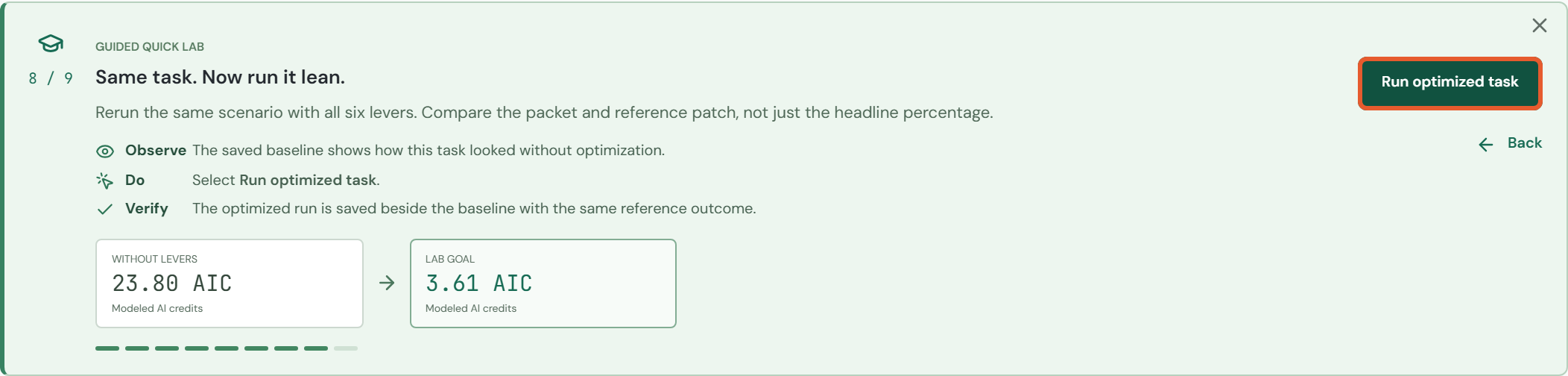
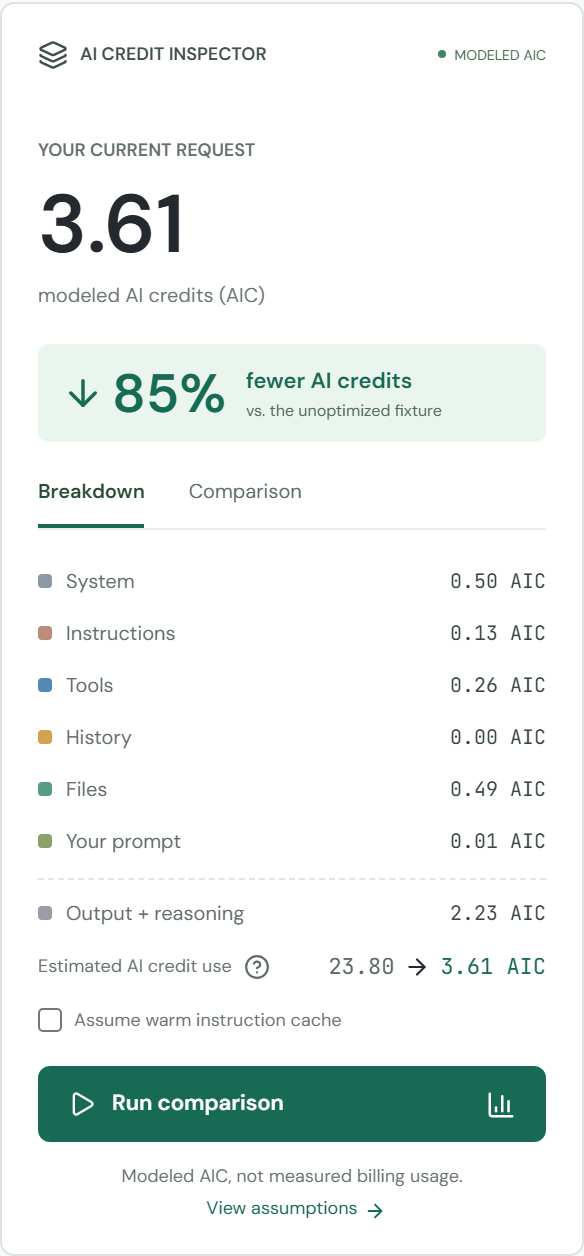
Confirm all six levers are enabled and the inspector reads 3.61 AIC. Do not change the prompt or enable warm cache.
Click Run optimized task in the green panel. Wait for the simulated response and patch preview.
The primary button changes to Continue. Click it once.
Task 8 / 9: Run optimized task.
Native alternative
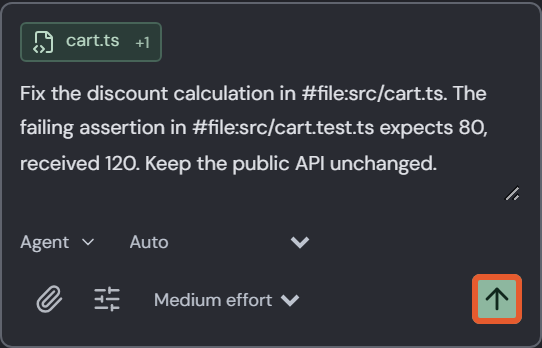
Click the Chat composer upward-arrow Send prompt button, or the inspector's Run comparison button. Use only one, once. Each completed request adds a history row.
Optimized composer with Auto and Medium effort.
VS CODE / TASK 9 OF 9
Finish without losing your work
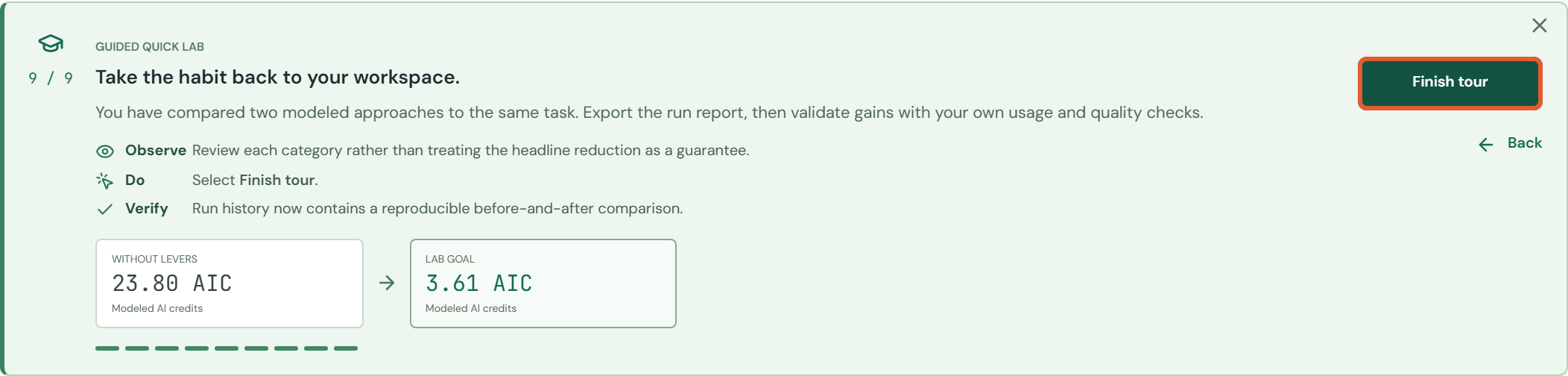
At Take the habit back to your workspace., click Finish tour.
Do not click Guided tour again: it starts over and clears the saved runs.
Continue to Apply the patch and check it, then export your run report before leaving the tab.
Task 9 / 9: Finish tour closes the panel and keeps your results.Example from the CLI guided route: the same two-run structure, with CLI in the Workspace column.
CLI / SETUP
Choose the terminal route
Open the CLI link, or click Copilot CLI above the workspace.
Select Fix a checkout regression in YOUR SCENARIO.
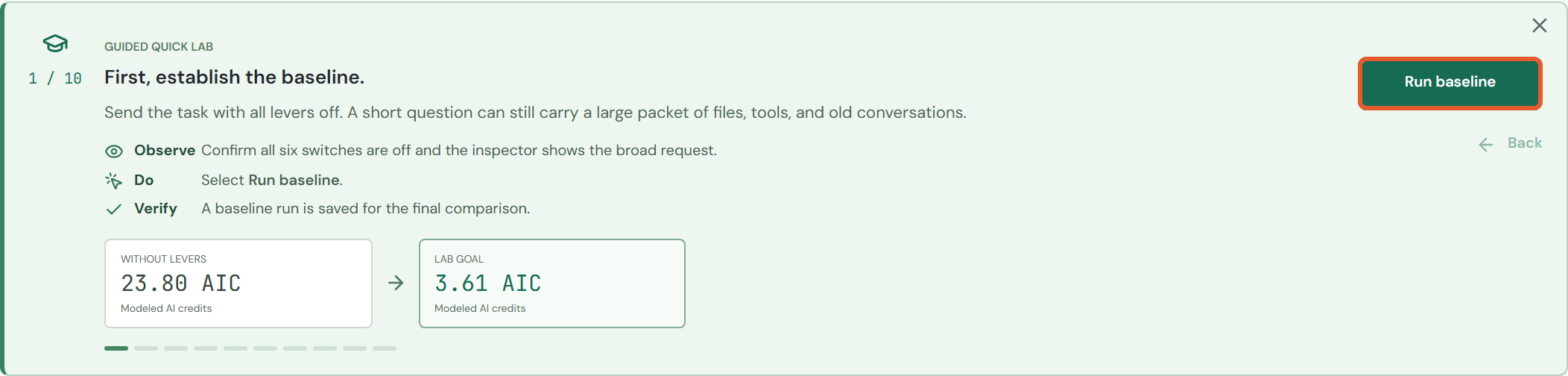
For the guided route, click Guided tour in the top-right header. Confirm 1 / 10.
Follow the next ten tasks in order. Use the tour action buttons for the exact published totals and two-run comparison.
Select Copilot CLI before starting Guided tour.Click Guided tour in the page header, not the /help button inside the terminal.For manual commands, type in the single-line input at the bottom, not in the dark output area.
Press Enter once to submit. Wait until the input is enabled again before the next command. These commands belong inside this browser demo, not PowerShell, Azure CLI, or gh copilot.
CLI / TASK 1 OF 10
Save the baseline run
In the green tour panel, click Run baseline.
Wait for Continue to become enabled. Check the result, then click Continue once.
Guided CLI route: task 1 / 10.
Manual CLI alternative
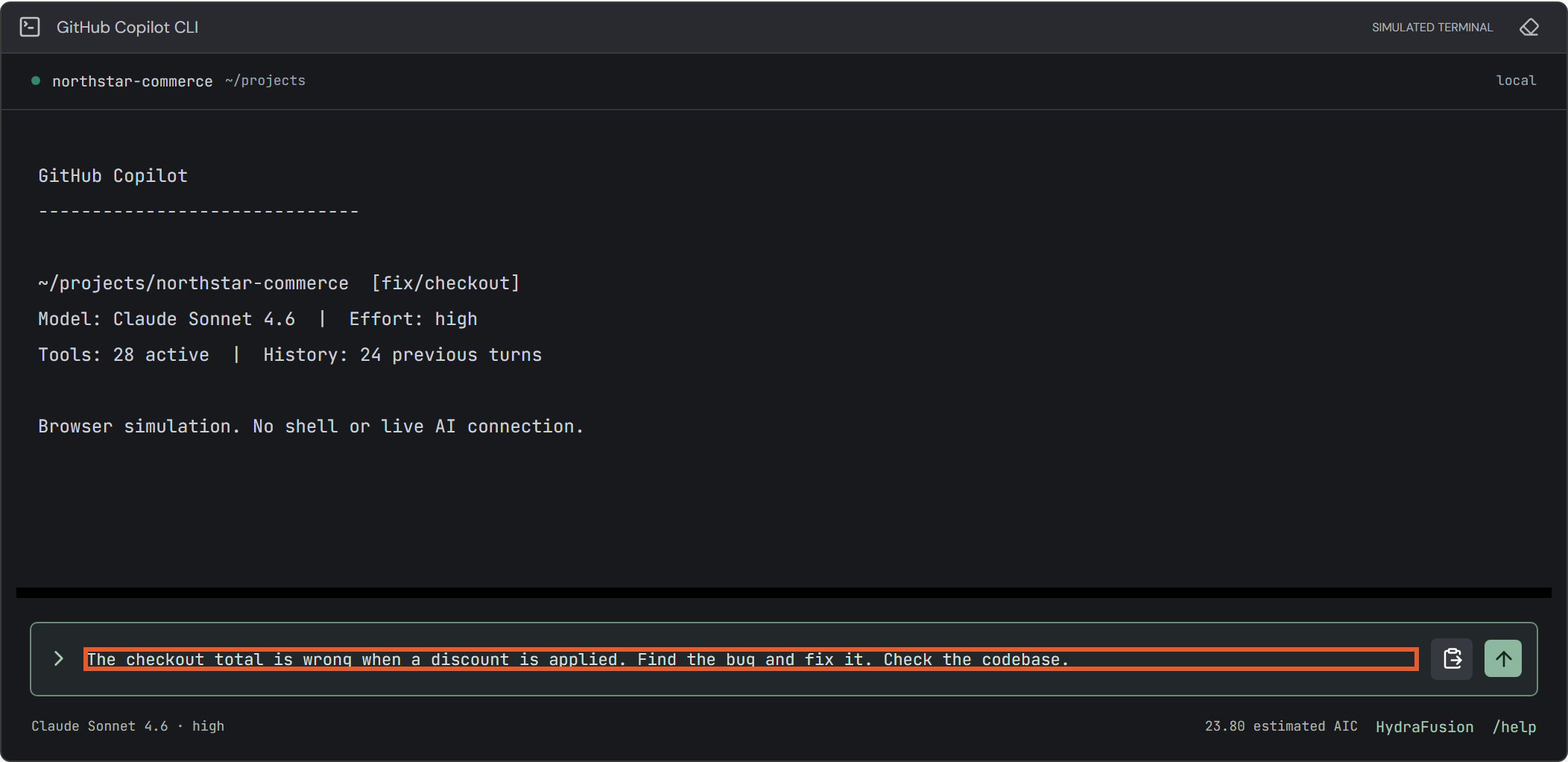
Outside the tour, click the clipboard icon beside the CLI input (Insert scenario prompt), then press Enter. Wait until the input is enabled again.
Manual route: the highlighted input or picker is the control to use.
The baseline includes broad files, 28 tool schemas, prior conversation history, long instructions, high reasoning effort, and manual model selection.
CLI / TASK 2 OF 10
Focus on the failing files
In the green tour panel, click Attach task files.
Wait for Continue to become enabled. Check the result, then click Continue once.
Guided CLI route: task 2 / 10.
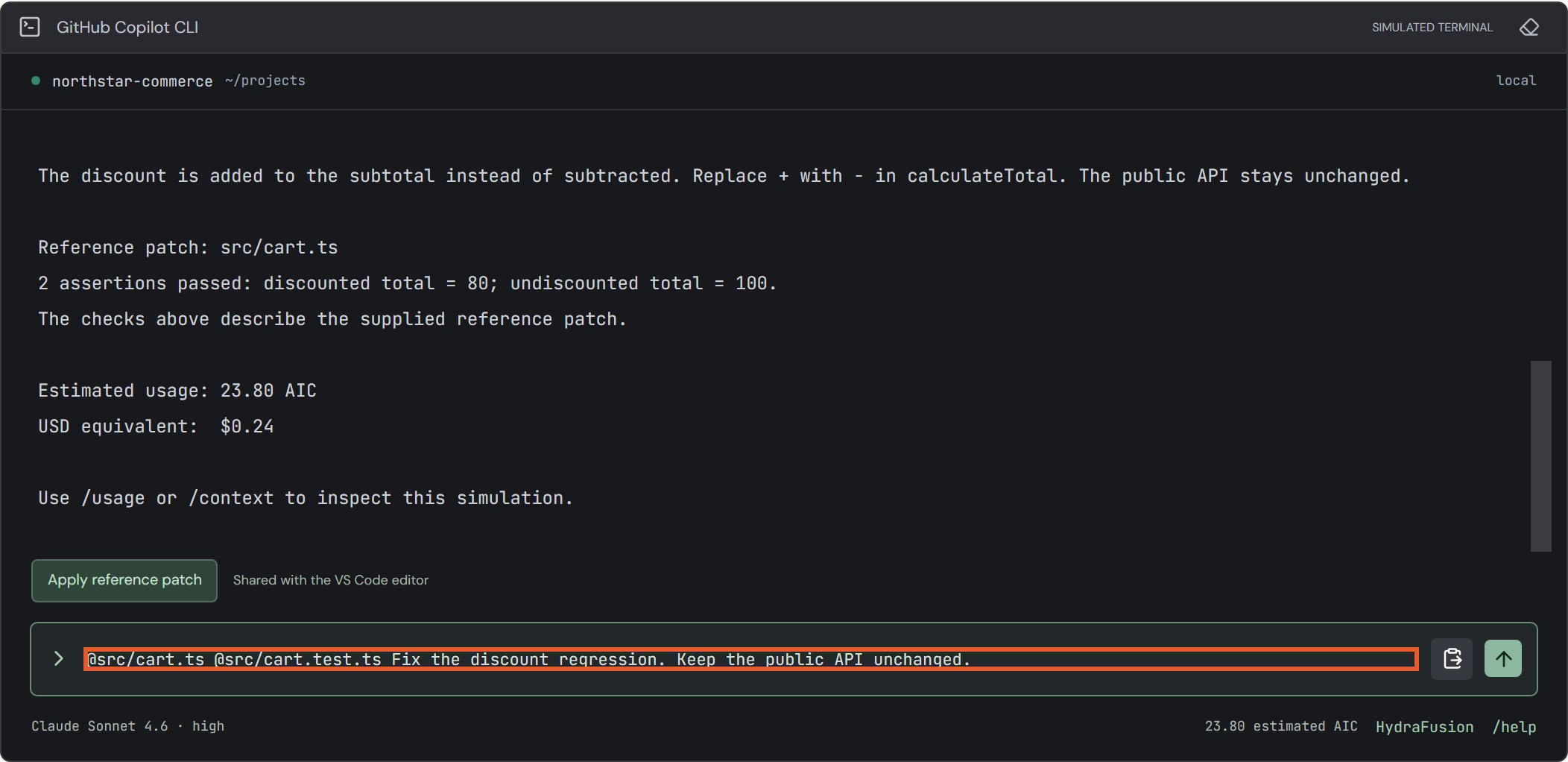
Manual CLI alternative
In the CLI input, type the following and press Enter. This both enables focused context and runs the fixture, so the manual route adds a run here.
@src/cart.ts @src/cart.test.ts Fix the discount regression. Keep the public API unchanged.
Manual route: the highlighted input or picker is the control to use.
Keep the tour prompt unchanged to reproduce the exact AIC values. A custom CLI prompt has a different estimated size and may change the last decimal.
CLI / TASK 3 OF 10
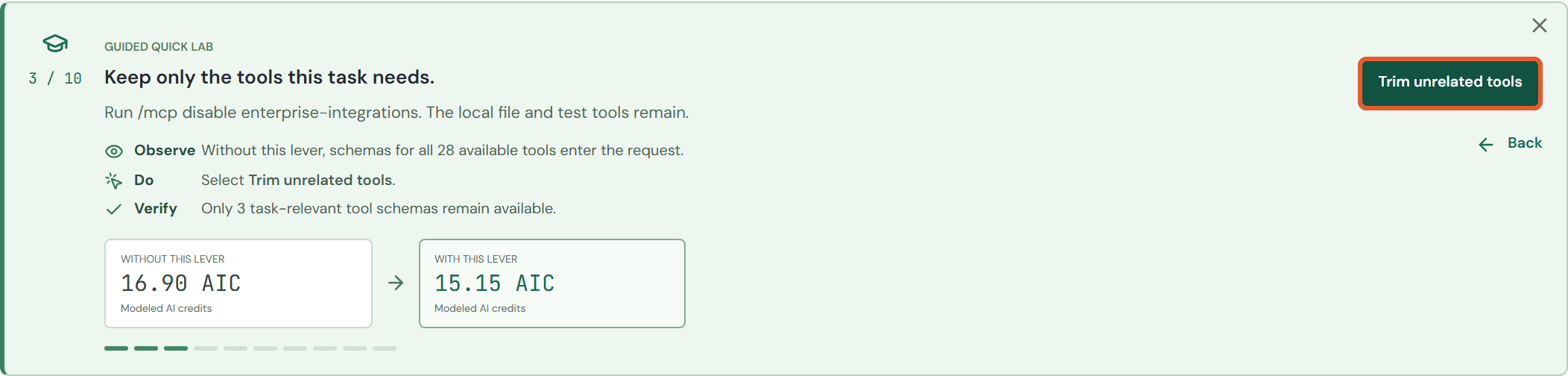
Keep only the relevant tools
In the green tour panel, click Trim unrelated tools.
Wait for Continue to become enabled. Check the result, then click Continue once.
Guided CLI route: task 3 / 10.
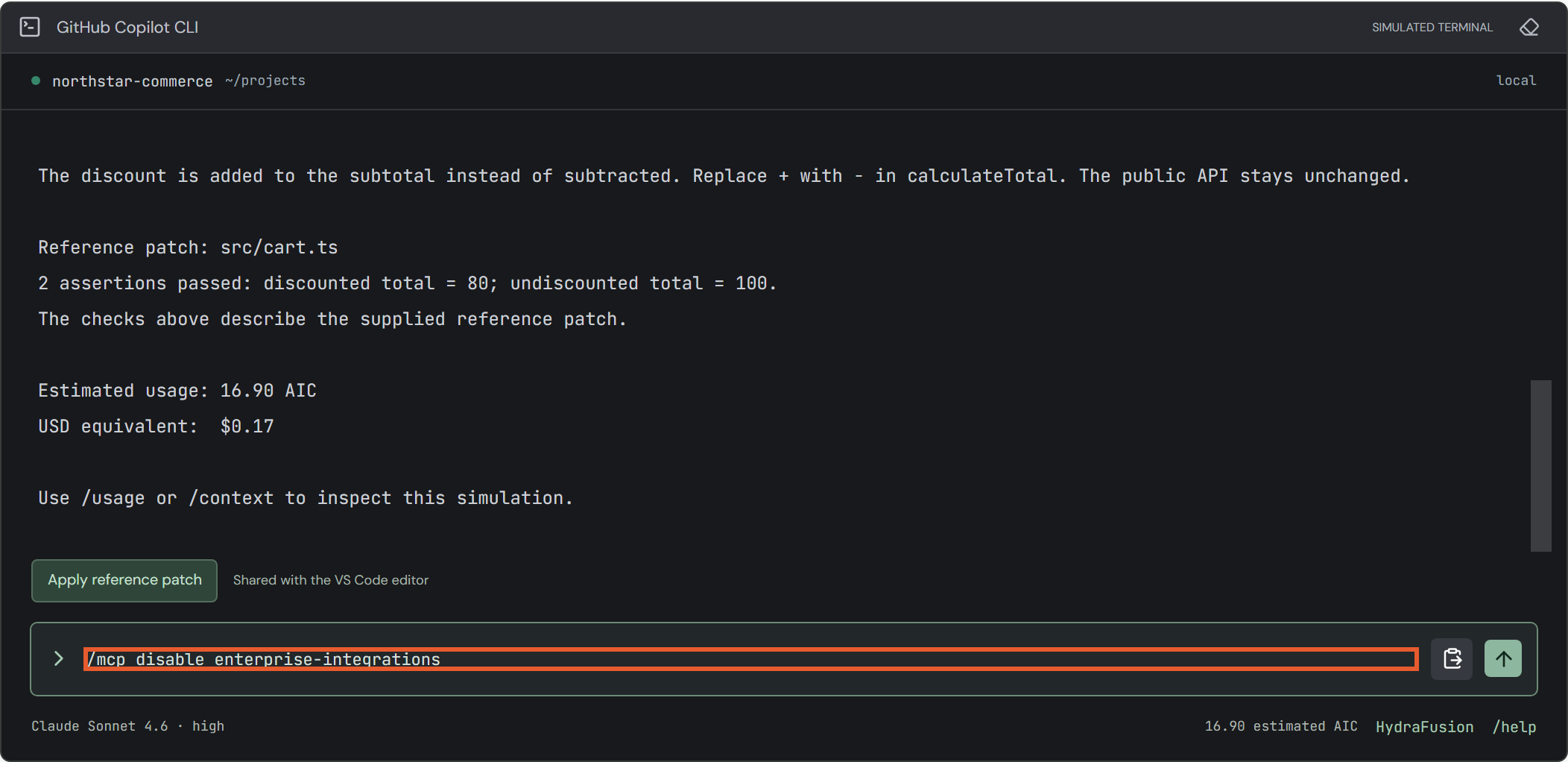
Manual CLI alternative
Type this command into the CLI input and press Enter. The terminal confirms that three core schemas remain.
/mcp disable enterprise-integrations
Manual route: the highlighted input or picker is the control to use.
enterprise-integrations is fictional. The modeled saving assumes eager schema loading; deferred loading in real clients can make this saving smaller or zero.
CLI / TASK 4 OF 10
Start a fresh conversation
In the green tour panel, click Start new conversation.
Wait for Continue to become enabled. Check the result, then click Continue once.
Guided CLI route: task 4 / 10.
Manual CLI alternative
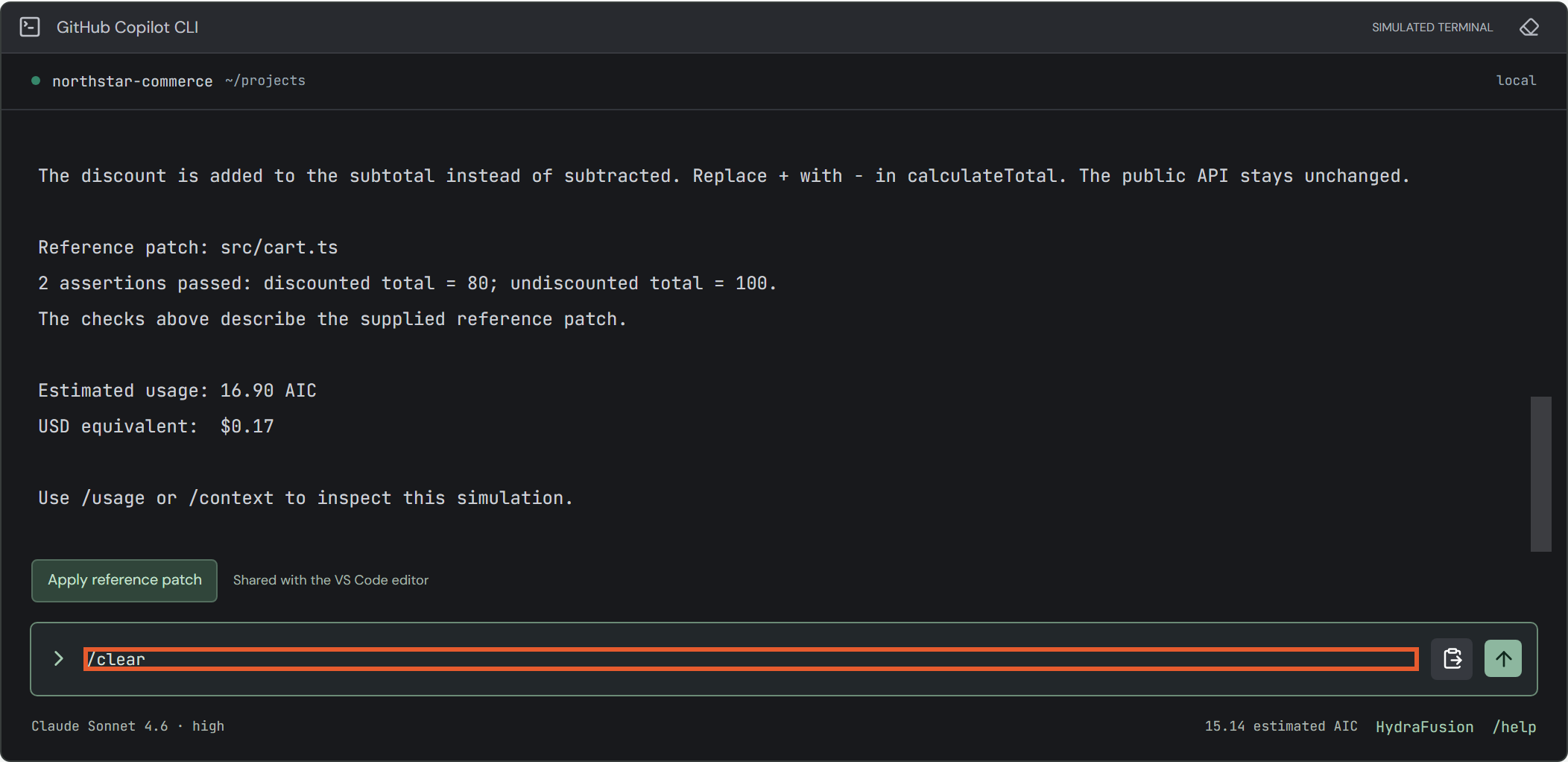
Type the following and press Enter. The terminal clears and its header reports History: new session.
/clear
Manual route: the highlighted input or picker is the control to use.
For ongoing work, /compact retains a 1,200-token summary. It is not equivalent to /clear and produces a higher modeled total. The eraser icon only clears the displayed terminal entries.
CLI / TASK 5 OF 10
Use lean project instructions
In the green tour panel, click Use lean instructions.
Wait for Continue to become enabled. Check the result, then click Continue once.
Guided CLI route: task 5 / 10.
Manual CLI alternative
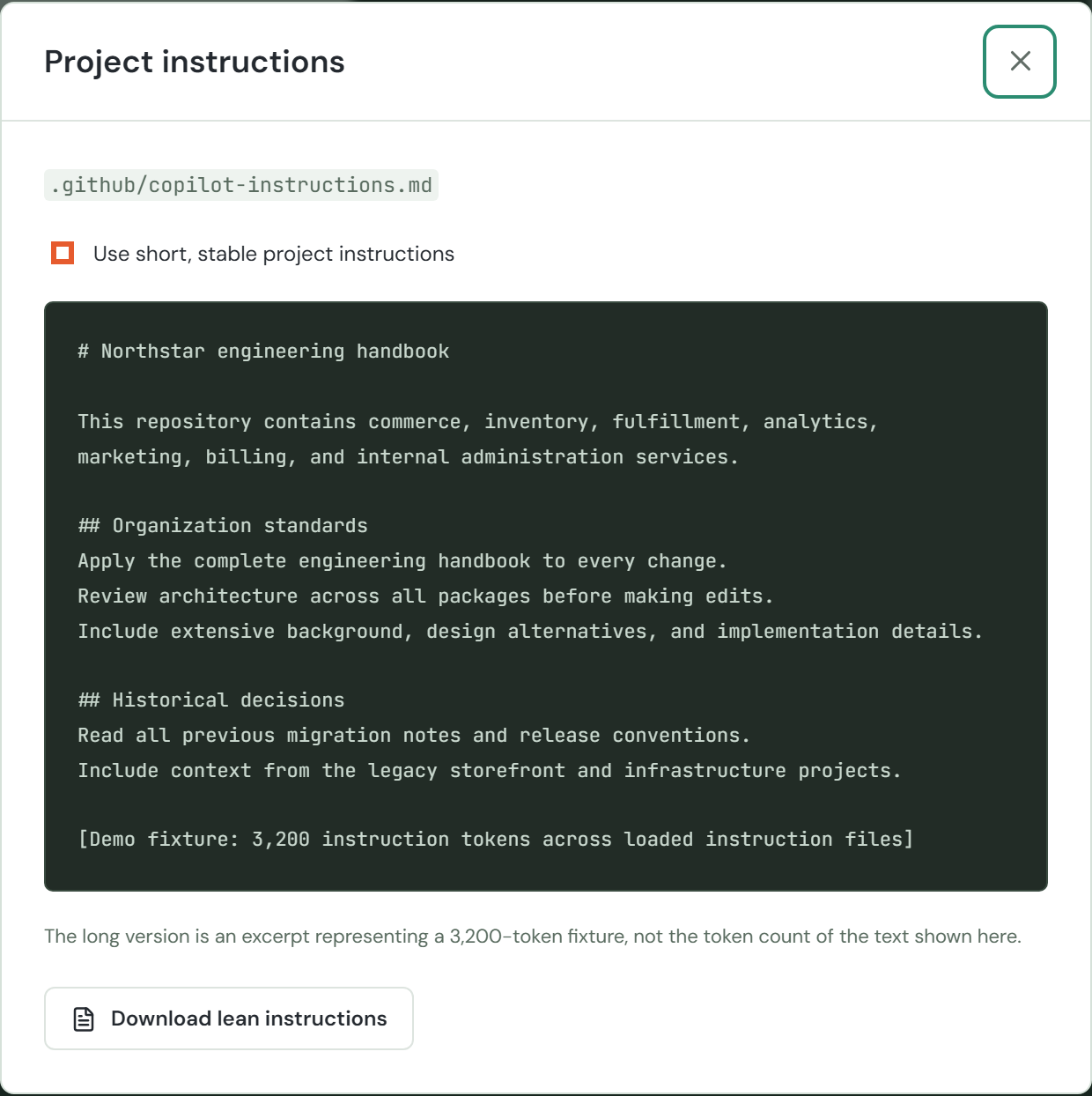
Enter /instructions. In the Project instructions dialog, checkUse short, stable project instructions. Close it with the top-right X. Downloading the instructions alone does not enable this lever.
Manual route: the highlighted input or picker is the control to use.
Leave the warm-cache checkbox off for this walkthrough. Shorter instructions do not guarantee a provider cache hit.
CLI / TASK 6 OF 10
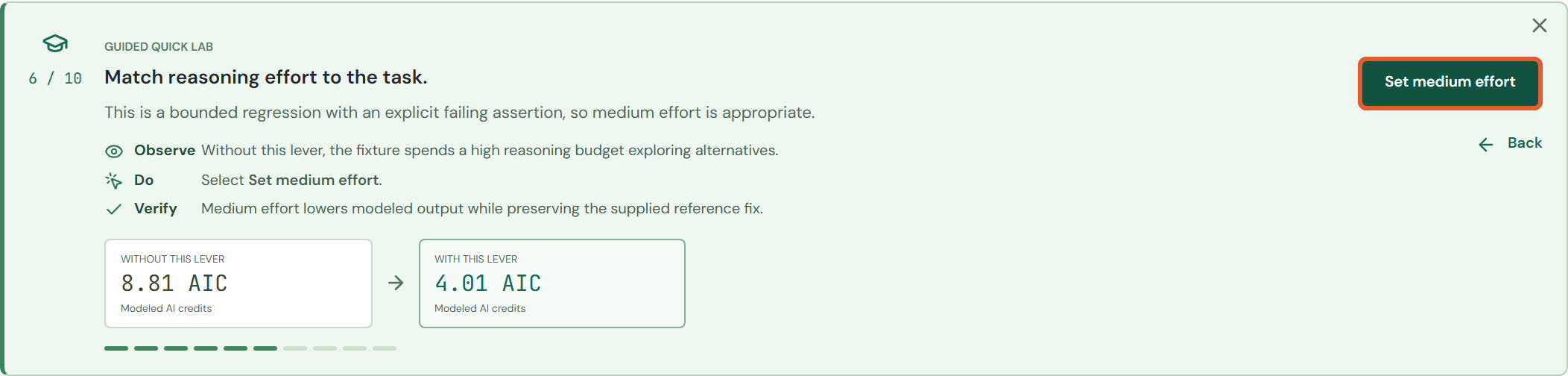
Set medium reasoning effort
In the green tour panel, click Set medium effort.
Wait for Continue to become enabled. Check the result, then click Continue once.
Guided CLI route: task 6 / 10.
Manual CLI alternative
Enter /model. In the picker above the CLI input, open Effort, select Medium, then click Done. Keep Model unchanged for this task.
Manual route: the highlighted input or picker is the control to use.
The response is a fixed reference answer. This does not prove that lower reasoning effort preserves quality on arbitrary real tasks.
CLI / TASK 7 OF 10
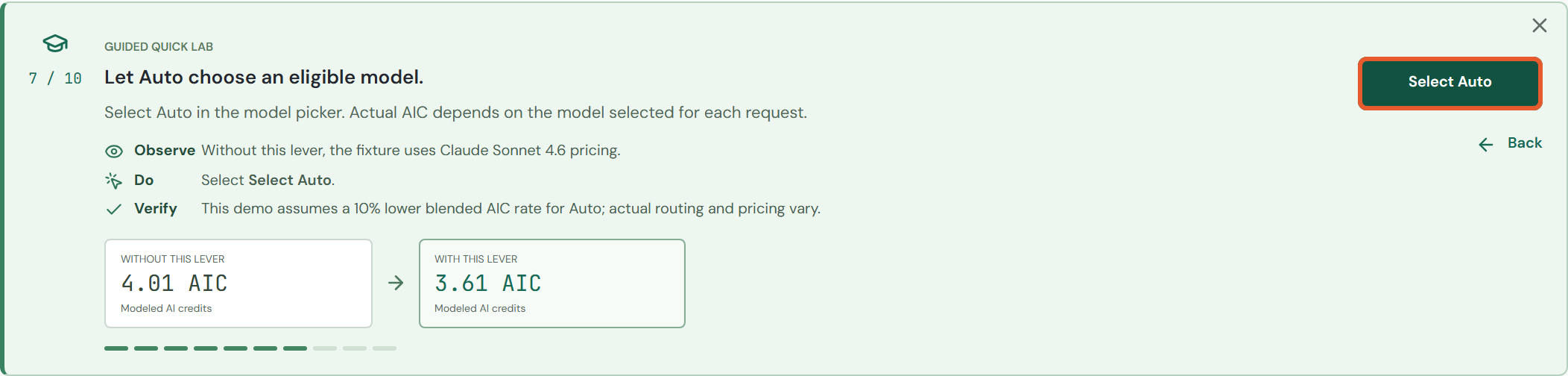
Select Auto model routing
In the green tour panel, click Select Auto.
Wait for Continue to become enabled. Check the result, then click Continue once.
Guided CLI route: task 7 / 10.
Manual CLI alternative
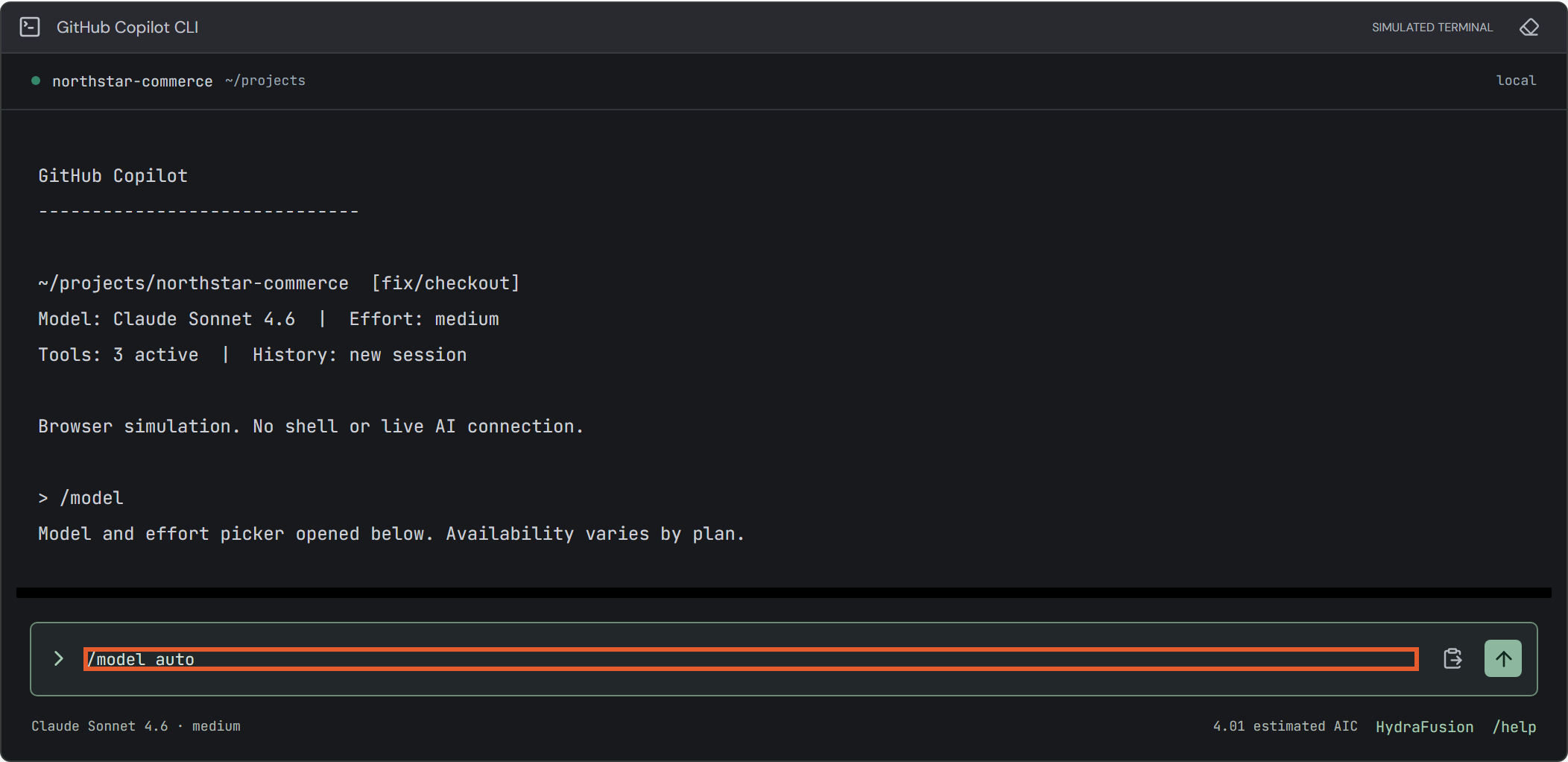
Enter the following command. The terminal confirms Model set to auto. The footer shows Auto and medium.
/model auto
Manual route: the highlighted input or picker is the control to use.
The simulator assumes a 10% lower blended rate for Auto. This is not a guaranteed discount or a statement about the model real Auto will select.
CLI / TASK 8 OF 10
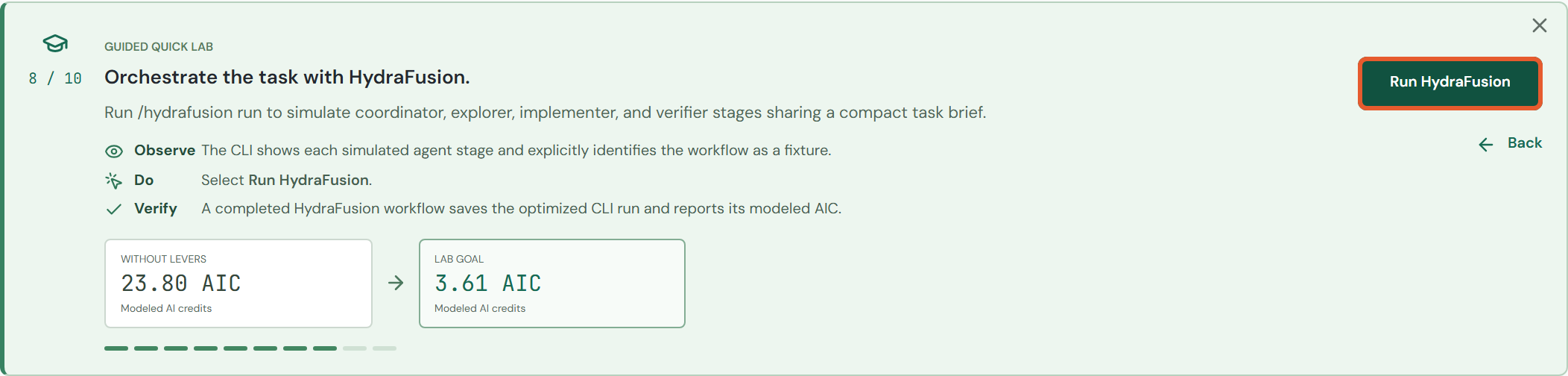
Run HydraFusion
At Orchestrate the task with HydraFusion., click Run HydraFusion in the green panel.
Wait for the workflow result. Do not click again while it is running.
Verify the result below, then click Continue.
Task 8 / 10: the tour triggers the same fixture as /hydrafusion run.
Manual alternative
Enter /hydrafusion run in the input and press Enter. After completion, enter /hydrafusion status. The terminal should report Latest HydraFusion workflow: completed.
Completed HydraFusion workflow and status in the deployed CLI.
CLI / TASK 9 OF 10
Recognize the saved optimized run
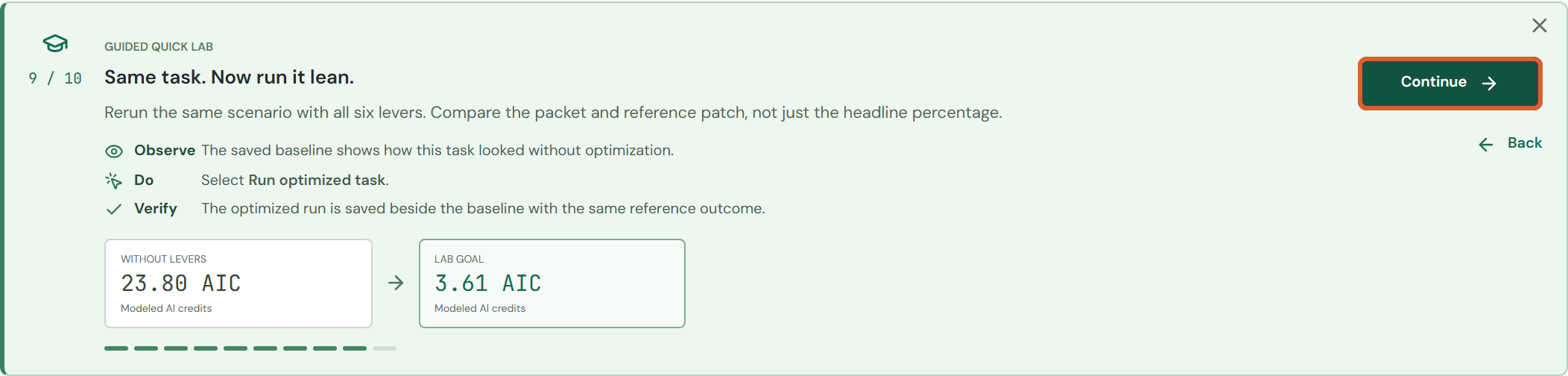
At Same task. Now run it lean., look at the primary tour button.
After HydraFusion it already says Continue. Click Continue once. You do not need to find or press Run optimized task.
If you skipped HydraFusion and genuinely see Run optimized task, click it, wait for completion, then click Continue.
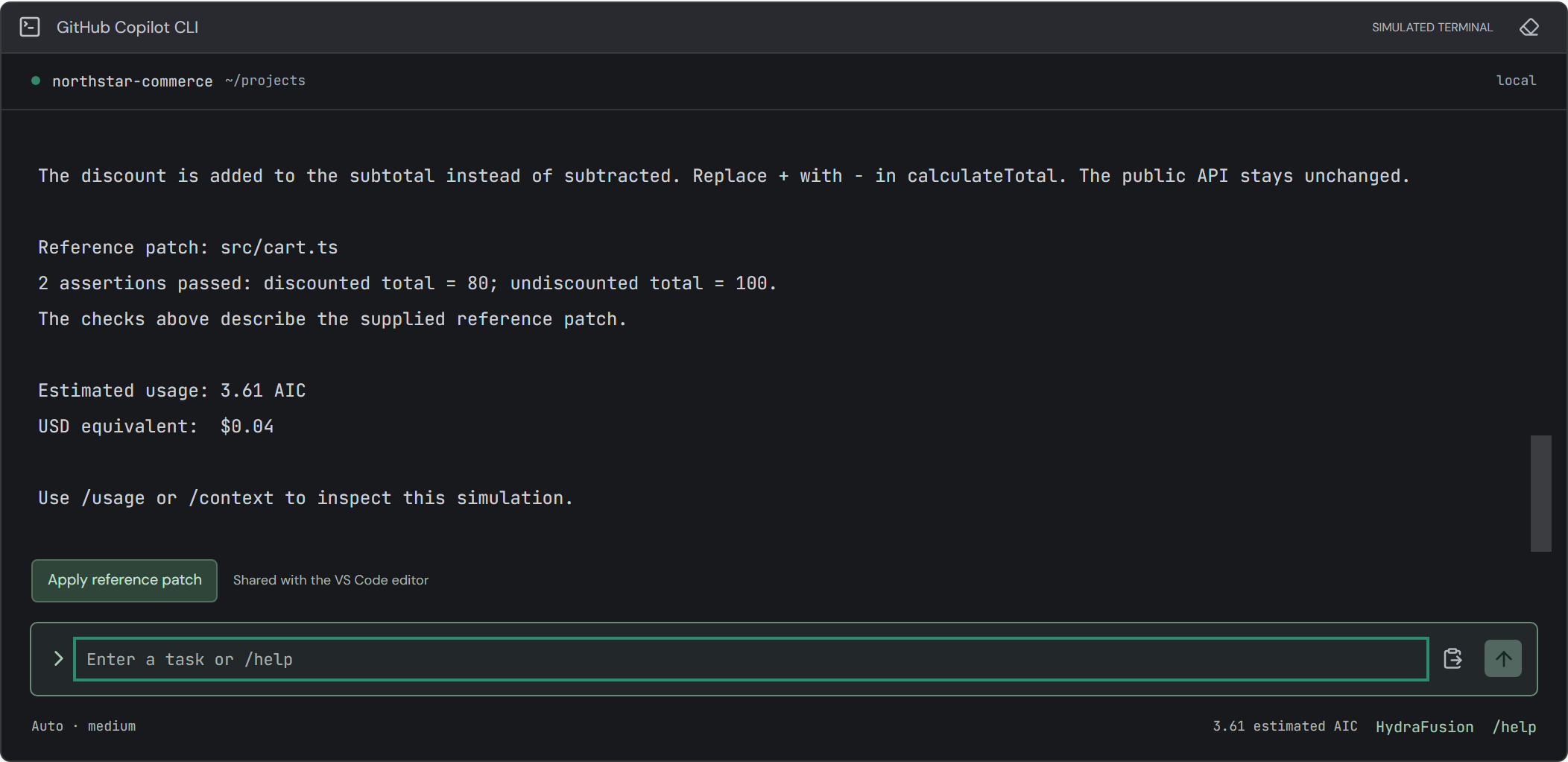
The verified post-HydraFusion state: Continue is already available.Manual route example: /usage shows three runs because the file-scoped prompt also executed a request.
CLI / TASK 10 OF 10
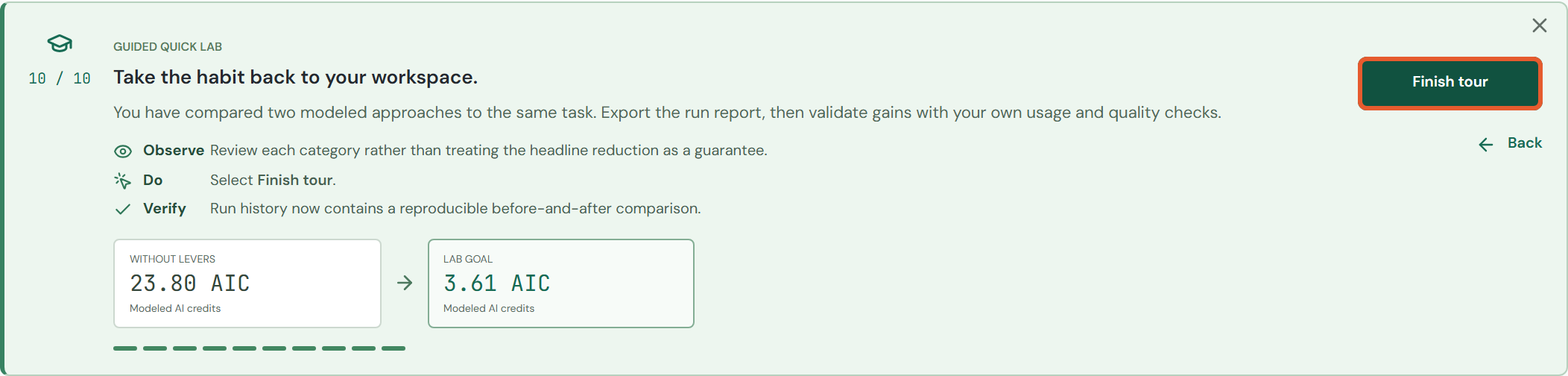
Finish the CLI tour
Click Finish tour in the green panel.
Click Run history in the top page navigation. Confirm baseline and optimized rows.
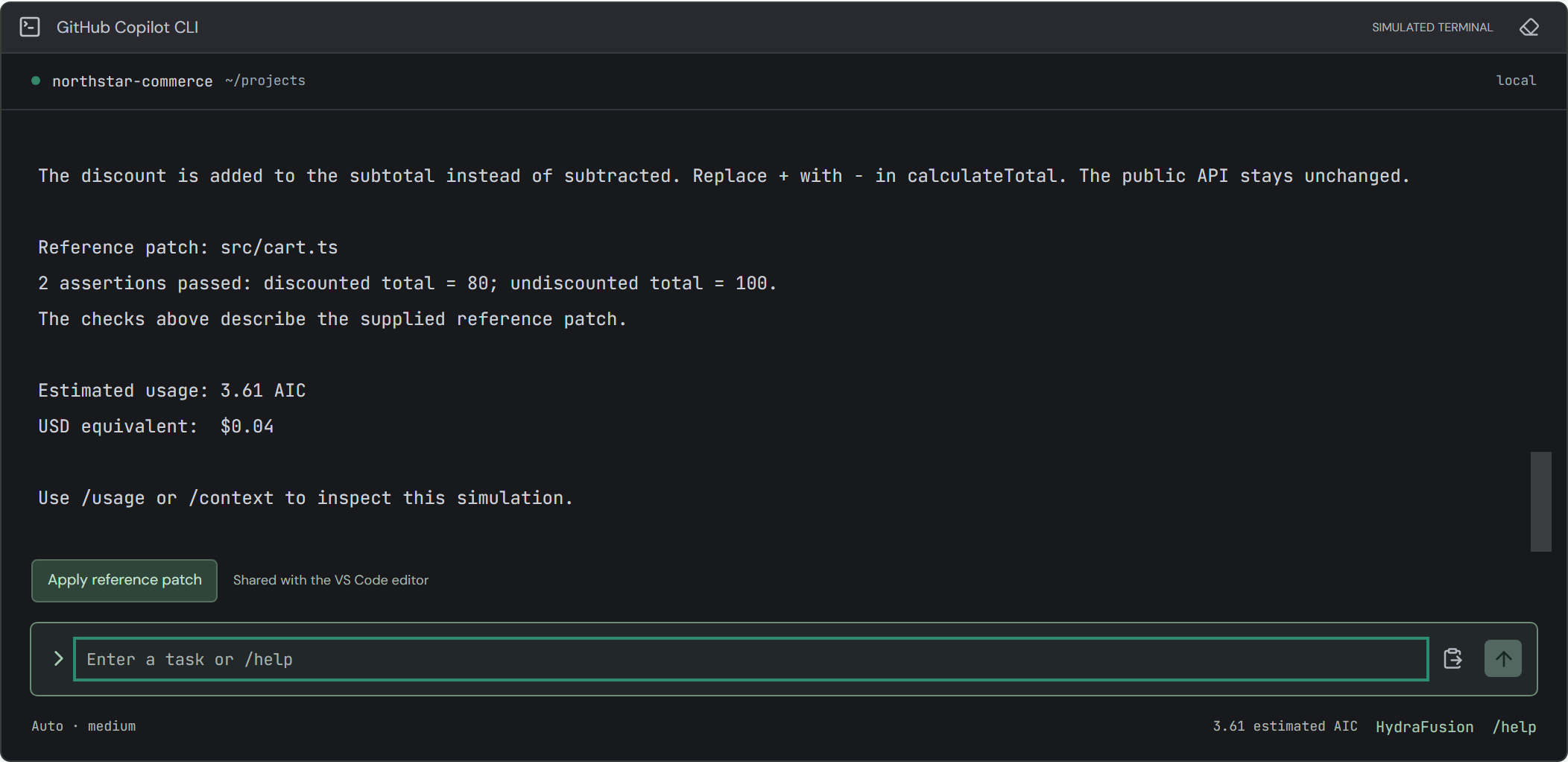
Click Simulator to return. The next section applies and checks the reference patch.
From Simulator, click VS Code above the workspace. A response from the CLI is shared with the editor.
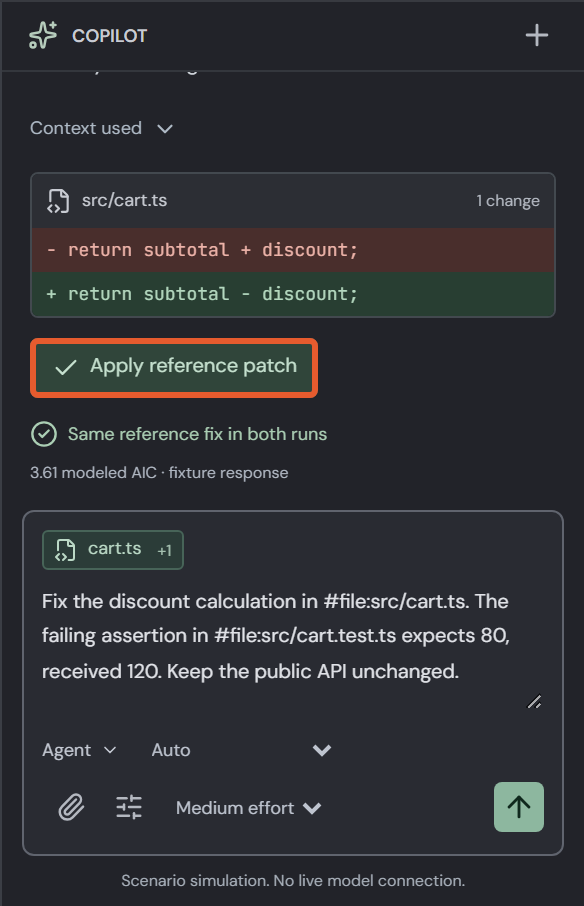
In Copilot Chat, click Apply reference patch. If it says Reference patch applied, skip this click.
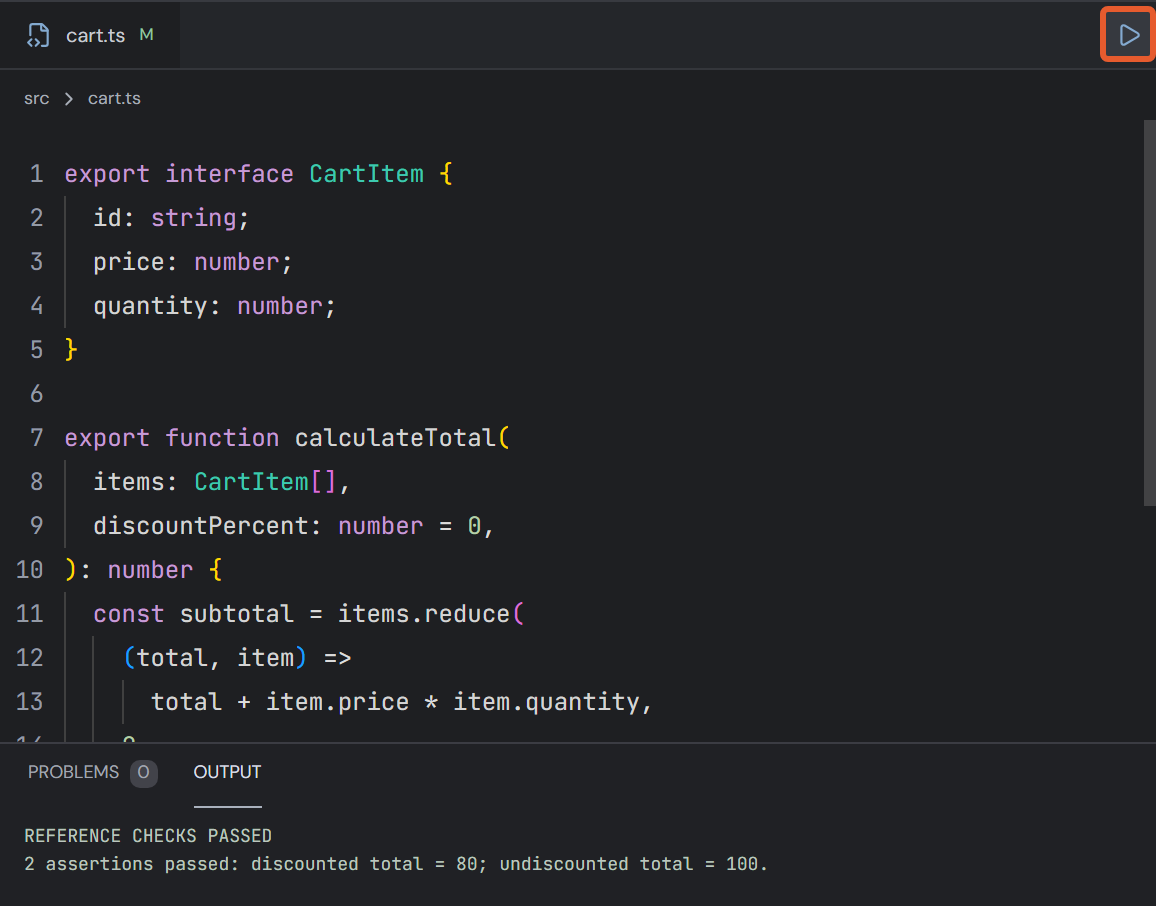
Click the small triangle at the right edge of the editor tab bar, accessible name Run reference checks, tooltip Check reference fixture. This is not the Send prompt arrow.
Read the OUTPUT panel underneath the editor.
1. Apply reference patch in Copilot Chat.2. Run reference checks in the editor tab bar; read OUTPUT below.
COMPARE
Read the saved results correctly
Click Run history in the page header.
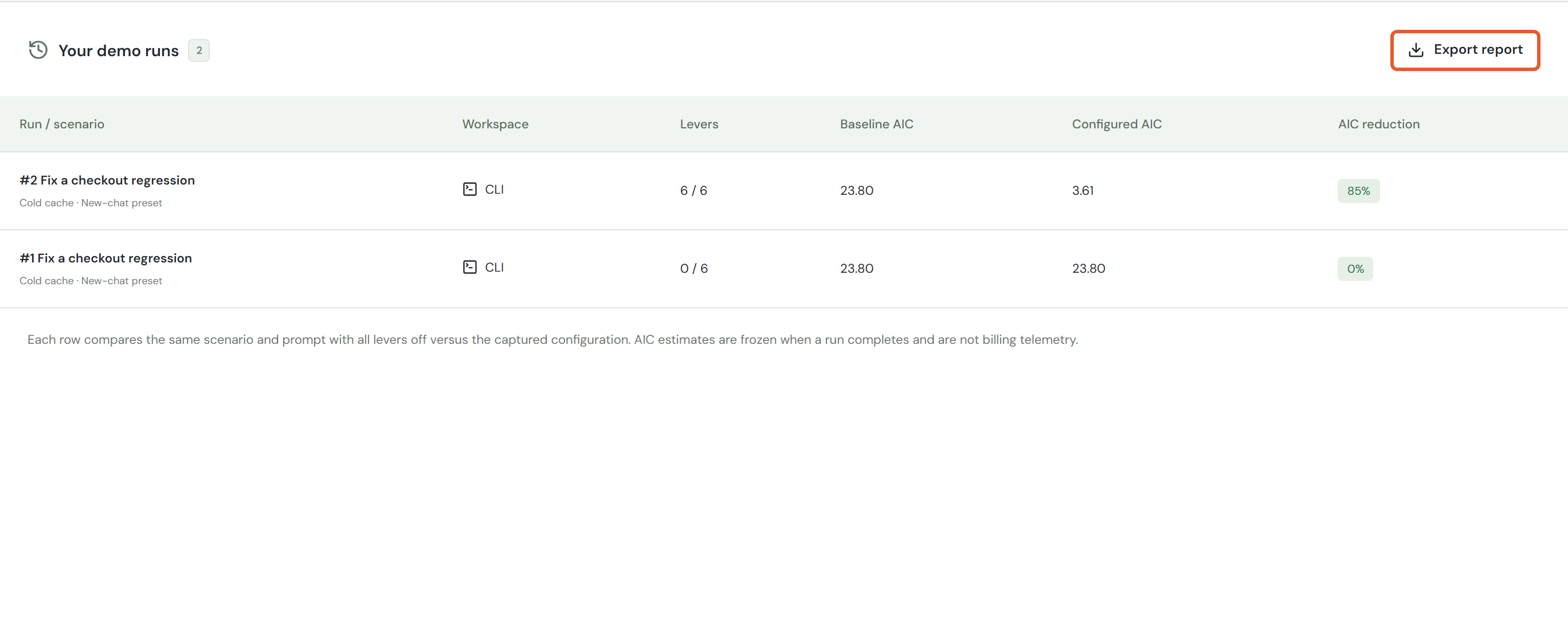
Read Levers, Baseline AIC, Configured AIC, and AIC reduction for each row.
The newest run is at the top. The exact guided route gives two rows; manual prompts or repeated runs add more.
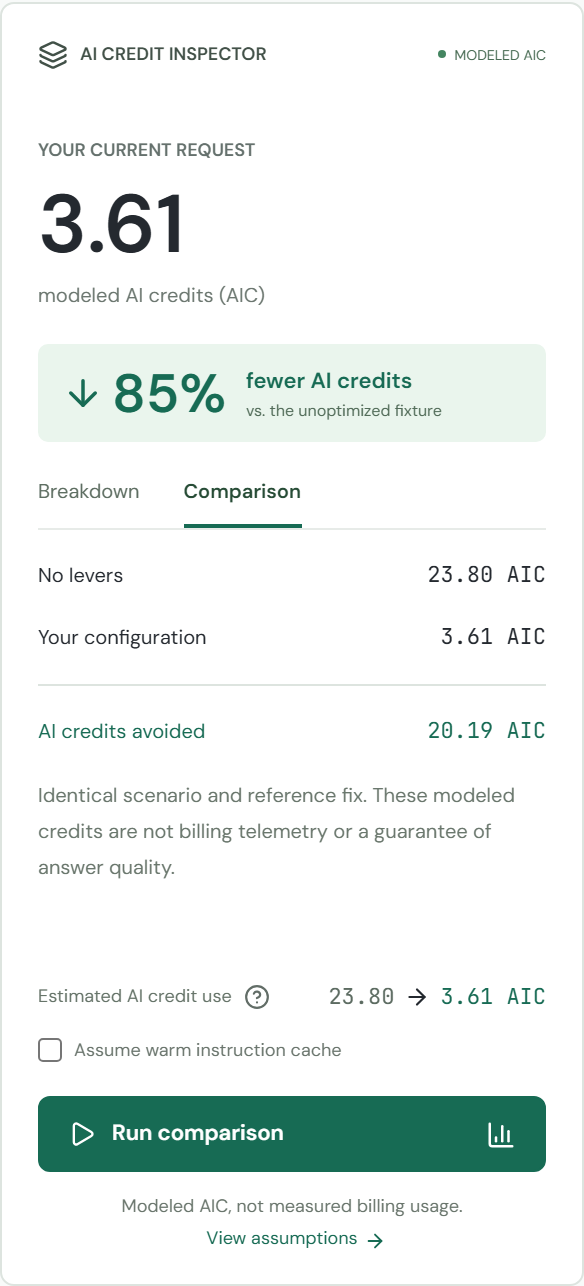
Click Simulator to return. Click Comparison in the inspector for the current unsaved configuration.
Saved run table: results are frozen when each request completes.
Saved versus current
Changing switches updates the inspector immediately but does not change old rows. Run comparison or Send prompt to save a new row.
For the checkout route, the headline is approximately 85% fewer modeled AIC, with the same supplied reference answer.
The optimized row compares its own prompt against all levers off. It is not a direct subtraction from every other row.
Current configuration comparison, not historical billing.
Quality is a separate check. Equal answers are built into this fixture. For real work, measure actual usage and independently validate output quality.
EXPORT
Download the run report
Complete at least one run. Open Run history.
Click Export report at the upper-right of the results table.
Open your browser Downloads list. Look for copilot-ai-credit-lab-report.json. It is JSON data, not this PDF.
You can also hover over the download-arrow icon near the page heading and click Export run report. Both controls export the same report.
Primary export control: Export report in the table heading.Alternative export control: highlighted download icon beside the page heading.
Disabled button? No completed run exists yet. Run the baseline and wait for its simulated response, then retry the export. If the browser blocks a download, allow the download for this site.
SHARE
Send a reproducible configuration
Click Simulator and leave the desired scenario, surface, and lever settings selected.
In the upper-right page action icons, click the connected-nodes icon, tooltip Share configuration.
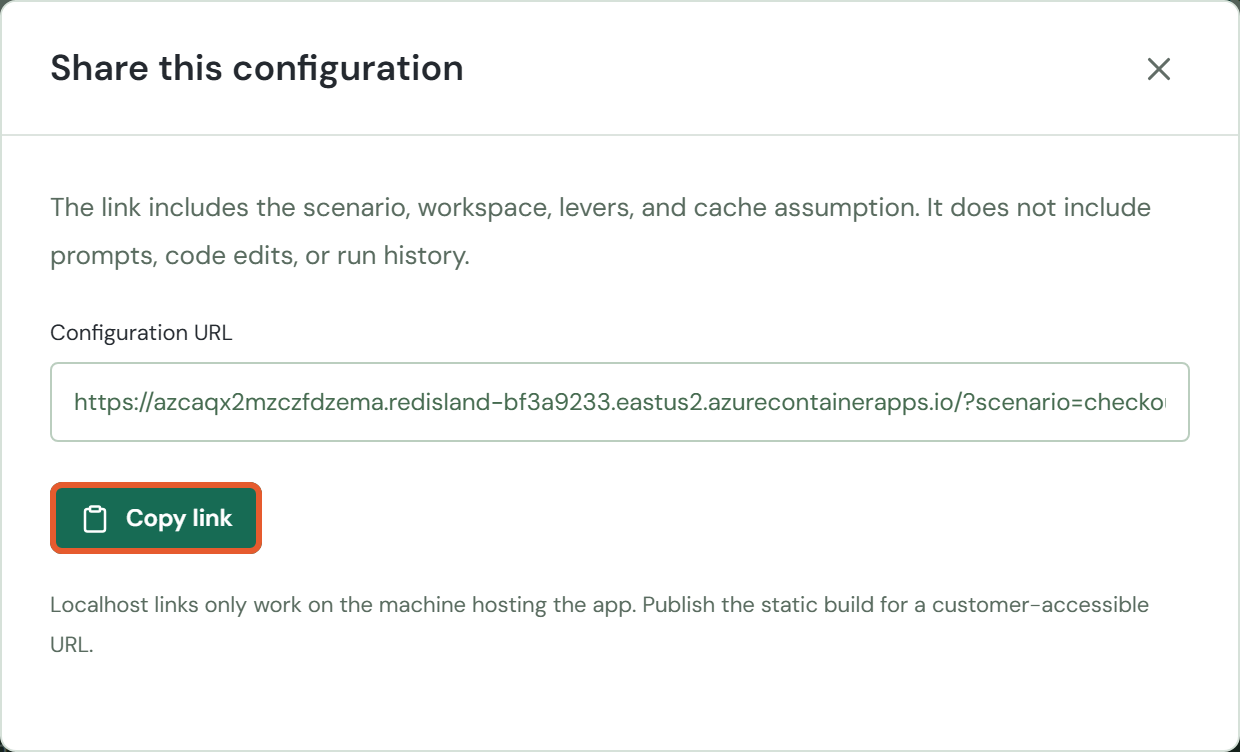
In Share this configuration, click Copy link. Expect Link copied.
If clipboard access is blocked, click the Configuration URL field, press Ctrl+C on Windows, and paste it into Teams.
Ask the recipient to open the link and run the request. Attach your exported JSON separately when they need your saved run evidence.
Share dialog: Copy link copies the current configuration URL.
ADDITIONAL SCENARIO
Fix an API retry boundary
Export previous runs first. Exit any open guided tour with its X.
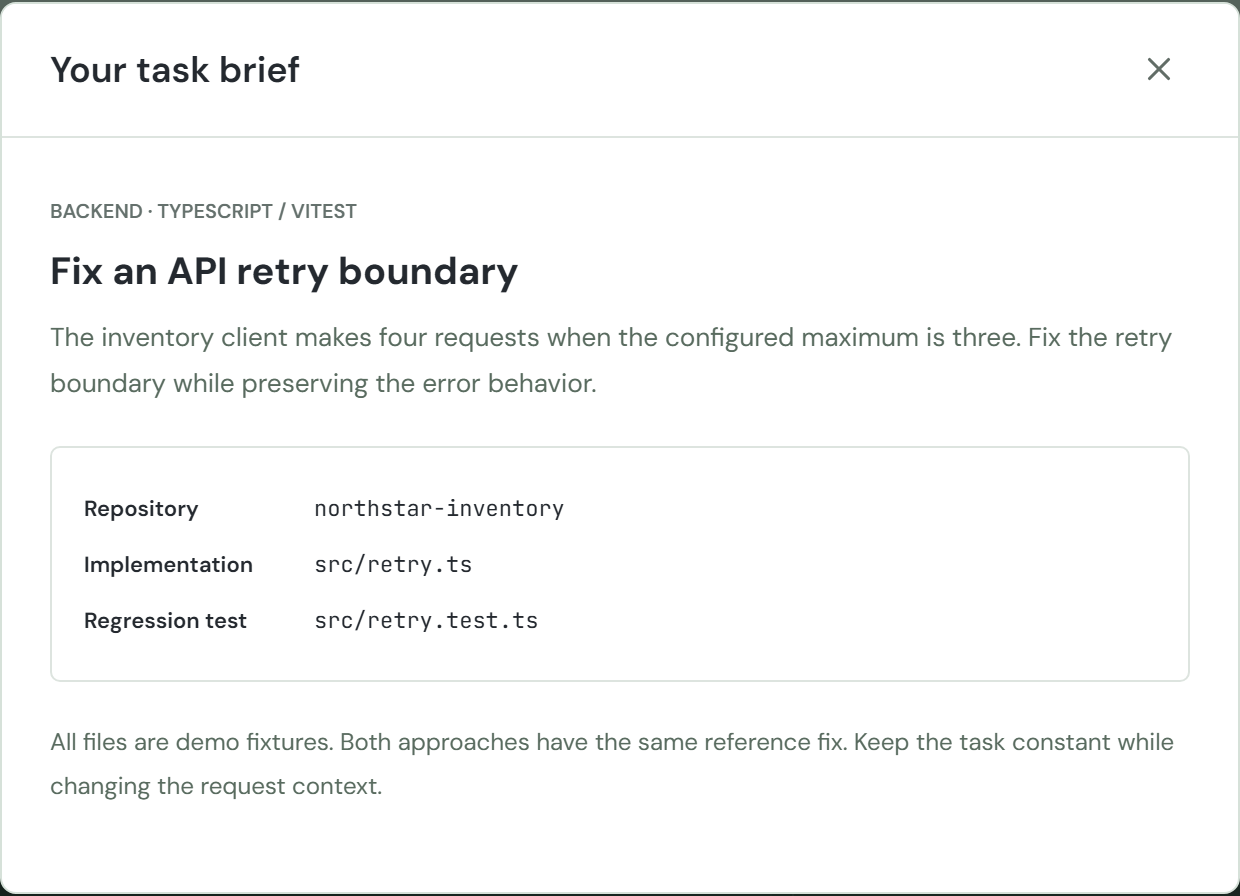
Select Fix an API retry boundary under YOUR SCENARIO, then click VS Code. Click Task brief to inspect the problem and close it with X.
For the full before/after exercise, click Guided tour and repeat the nine VS Code tasks. Scenario selection alone does not clear previous levers or history.
For a quick fix-only exercise instead: turn all six switches on (or click Enable all if shown), keep warm cache off, and click Send prompt.
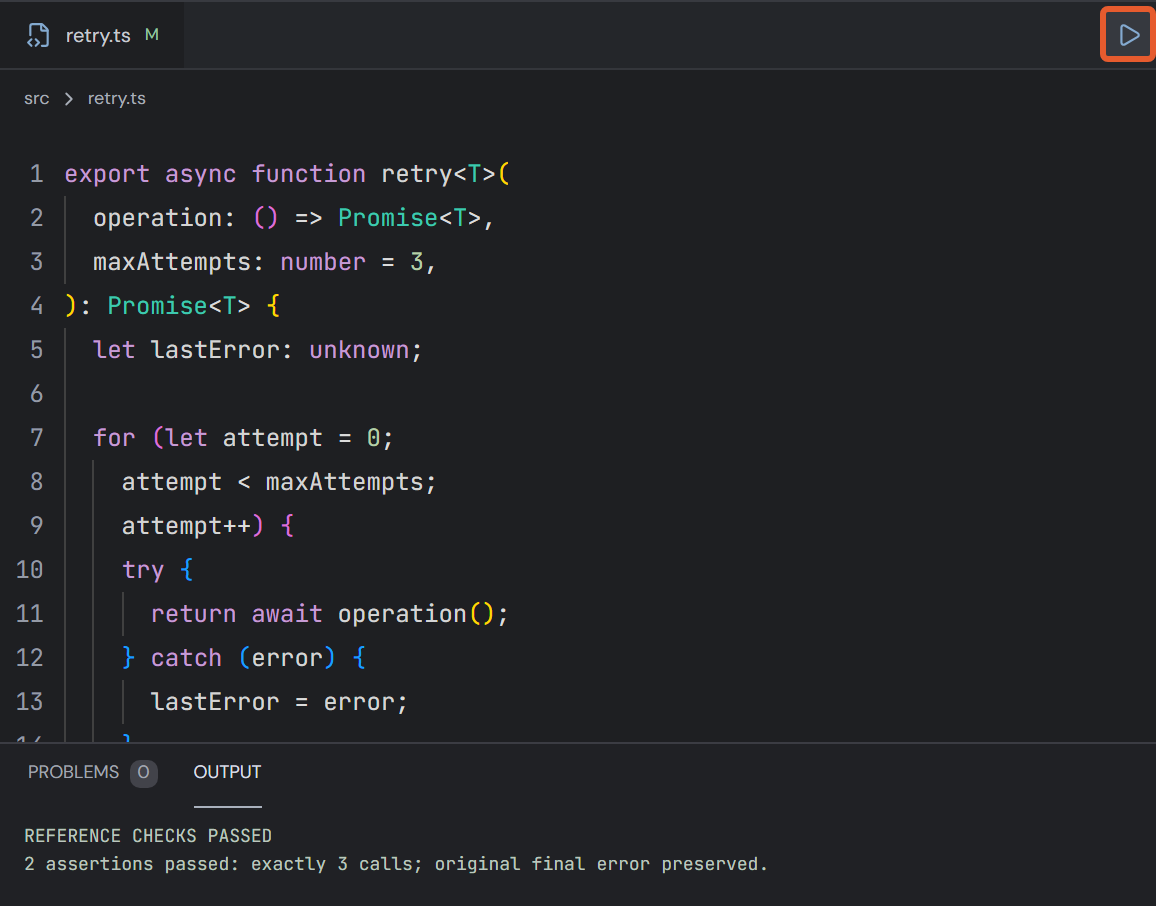
When the response appears, click Apply reference patch, then the editor-tab Run reference checks triangle.
Task brief: implementation and regression-test files.Reference patch applied; OUTPUT shows the expected assertions.
Why the fix works: The inclusive loop runs attempts 0, 1, 2, and 3. The reference change uses < instead of <= to make exactly three attempts while preserving the final error.
CLI variant: select this scenario, switch to Copilot CLI, and enter /hydrafusion run. It automatically uses src/retry.ts and src/retry.test.ts.
ADDITIONAL SCENARIO
Cover a shipping edge case
Export previous runs first. Exit any open guided tour with its X.
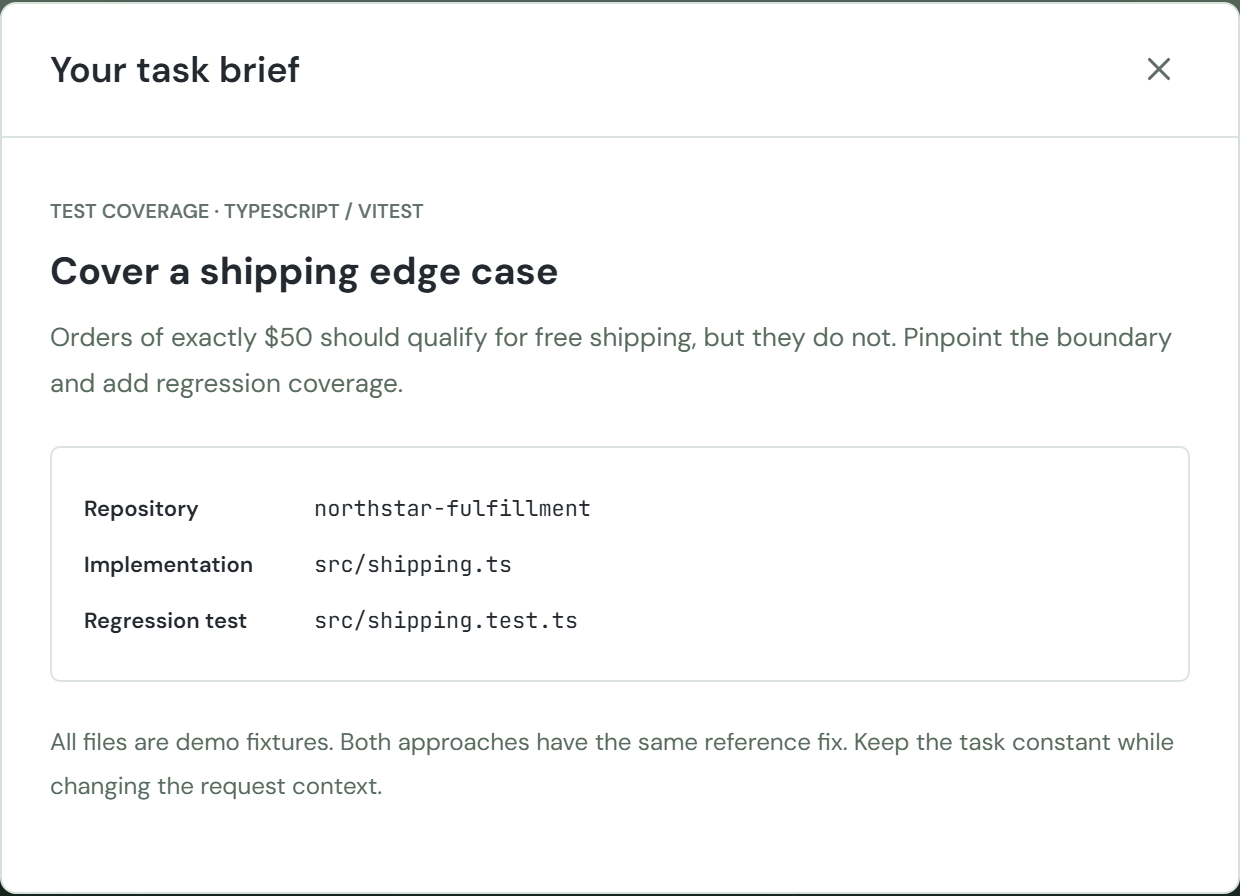
Select Cover a shipping edge case under YOUR SCENARIO, then click VS Code. Click Task brief to inspect the problem and close it with X.
For the full before/after exercise, click Guided tour and repeat the nine VS Code tasks. Scenario selection alone does not clear previous levers or history.
For a quick fix-only exercise instead: turn all six switches on (or click Enable all if shown), keep warm cache off, and click Send prompt.
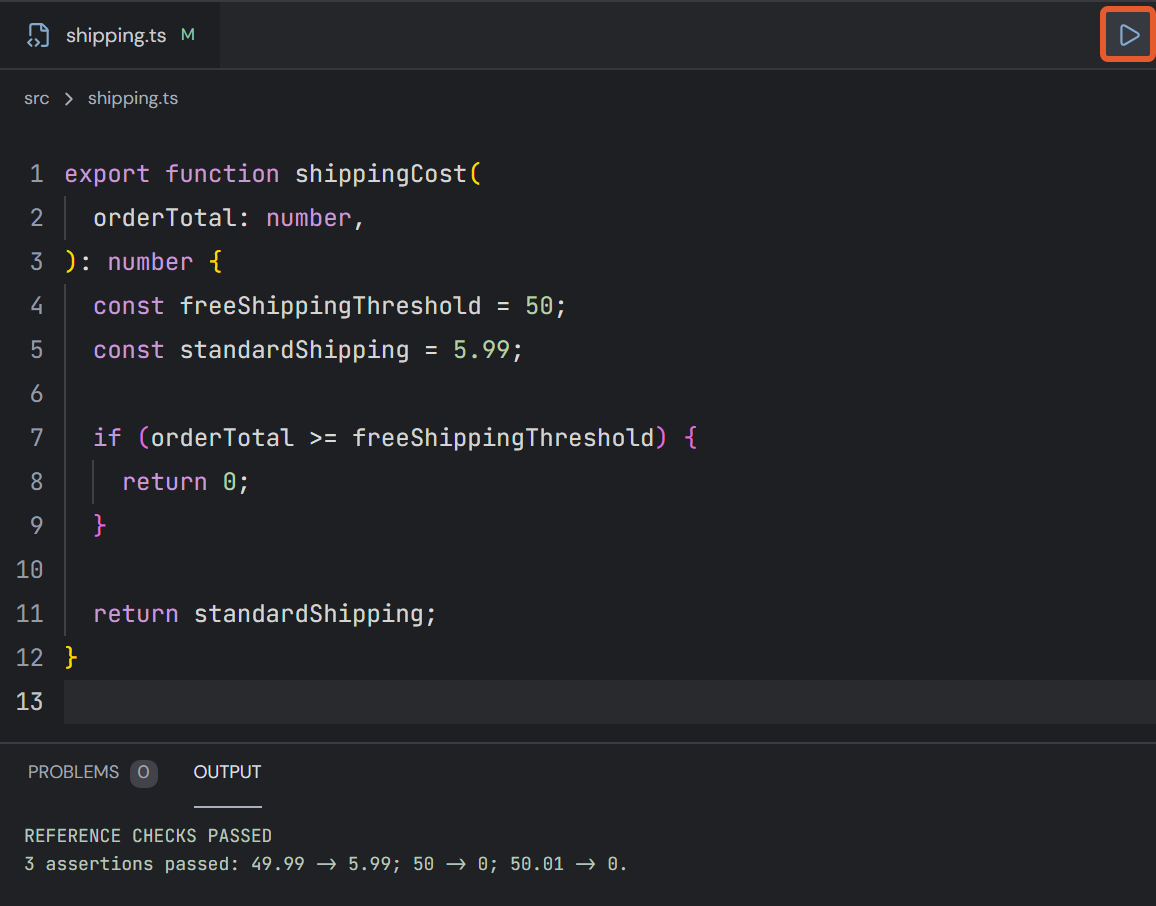
When the response appears, click Apply reference patch, then the editor-tab Run reference checks triangle.
Task brief: implementation and regression-test files.Reference patch applied; OUTPUT shows the expected assertions.
Why the fix works: The reference change uses >= instead of > so exactly $50 qualifies for free shipping. The boundary tests are already supplied in this demo; you do not need to author them.
CLI variant: select this scenario, switch to Copilot CLI, and enter /hydrafusion run. It automatically uses src/shipping.ts and src/shipping.test.ts.
UNDERSTAND AIC
What the simulator counts
Read Breakdown in the inspector
System: fixed system-instruction fixture.
Instructions: long or lean project rules.
Tools: available tool schemas, not the number of tools actually executed.
History: old turns, an empty conversation, or a retained summary.
Files: broad retrieval or focused task files.
Your prompt: an estimate from entered character count.
Output + reasoning: fixed answer plus illustrative reasoning budget.
The current all-six-lever, cold-cache checkout request.
Pricing assumptions
The model converts estimated input and output usage to USD using its configured Sonnet 4.6 rates, then uses 1 AIC = $0.01 USD. Auto applies an illustrative 10% lower blended rate. These are simulator assumptions, not current-plan billing advice.
Optional cache experiment
Enable Keep instructions lean first. Otherwise the cache checkbox is disabled.
Check Assume warm instruction cache below the inspector. Observe the changed estimate, then uncheck it to restore the guide's values.
Click View assumptions below Run comparison for the complete methodology.
RECOVERY
Get unstuck without restarting blindly
What you see
What to do
Button already says Continue
The task is complete. Click Continue once. This is expected after HydraFusion.
Command input disabled
Wait for the simulation to finish. Do not repeatedly submit. Stop simulation in the inspector cancels the current run; cancelled runs are not saved.
AIC differs from the guide
Check the checkout scenario, default prompt, cold cache, clear history, and lever order. Manual prompts or /compact legitimately change totals.
No Apply reference patch button
Run a task and wait for its response. New chat clears the visible response; run the optimized task again if necessary.
REFERENCE CHECK FAILED
The original source is still present. Click Apply reference patch, then Run reference checks.
CUSTOM EDIT DETECTED
Custom code is not executed here. Reapply the reference patch to restore the recognized fixture.
Scenario selector is disabled
Exit the guided panel with its X and wait for any running request to complete.
Cannot see the editor on a narrow screen
In VS Code view, use the Editor / Copilot Chat pane tabs. Scroll down to reach the inspector and six switches.
Only when you need a complete restart
Export existing runs first.
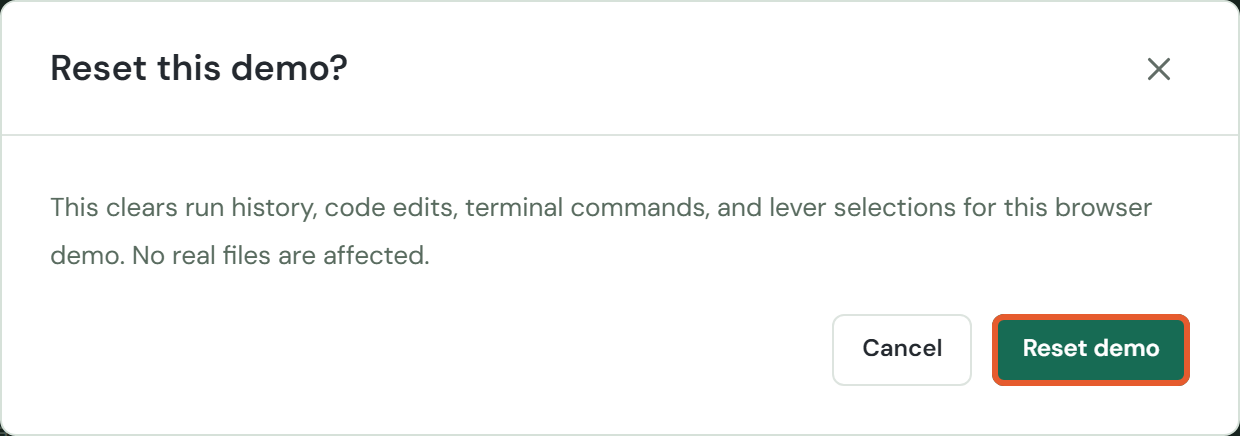
Click the circular-arrow page icon, tooltip Reset demo.
Read the dialog and click Reset demo again to confirm, or Cancel to keep your work.
Reset confirmation: clears local runs, edits, terminal entries, and lever selections.
Reloading also loses in-memory runs. The URL can restore configuration, not results. Real Copilot versions, plans, available models, tools, and organization policy may differ from this replica.